Install
omarchy plugin add https://github.com/screenrig/omarchy --enableThe plugin uses the screenRIG CLI's sign-in. Quickstart installs the official plugin for your agent, which bundles the CLI; run screenrig login once and the Omarchy plugin picks it up. It needs Omarchy 4.5 and Python 3. The source is MIT licensed at github.com/screenrig/omarchy.
Every screen from the bar
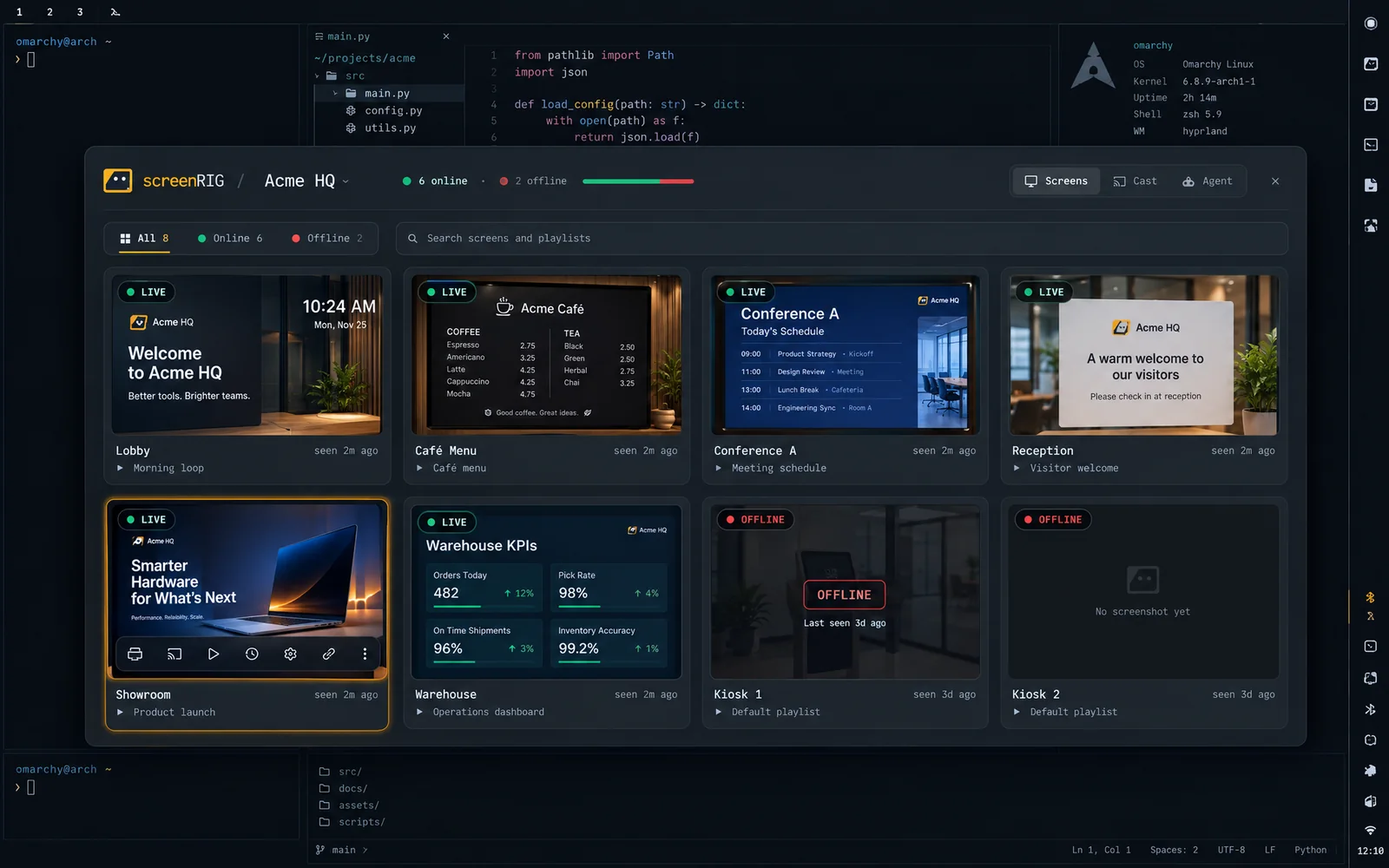
The screenRIG mark sits in your bar and shows a red dot when a screen drops or a cast is live. Click it for the panel. The Screens tab lists every screen with its latest screenshot, its playlist and when it was last seen. Reload a screen, switch its playlist, turn its display off, override it for a while, take a fresh screenshot, restart it or open it in the dashboard.
A project switcher sits in the panel header. The Omarchy menu gets a screenRIG section with every screen and playlist, searchable, and notifications tell you when a screen goes offline or comes back, a publish reaches its screens, an ad booking needs review, or a live cast starts or stops.
Cast your desktop or a window live
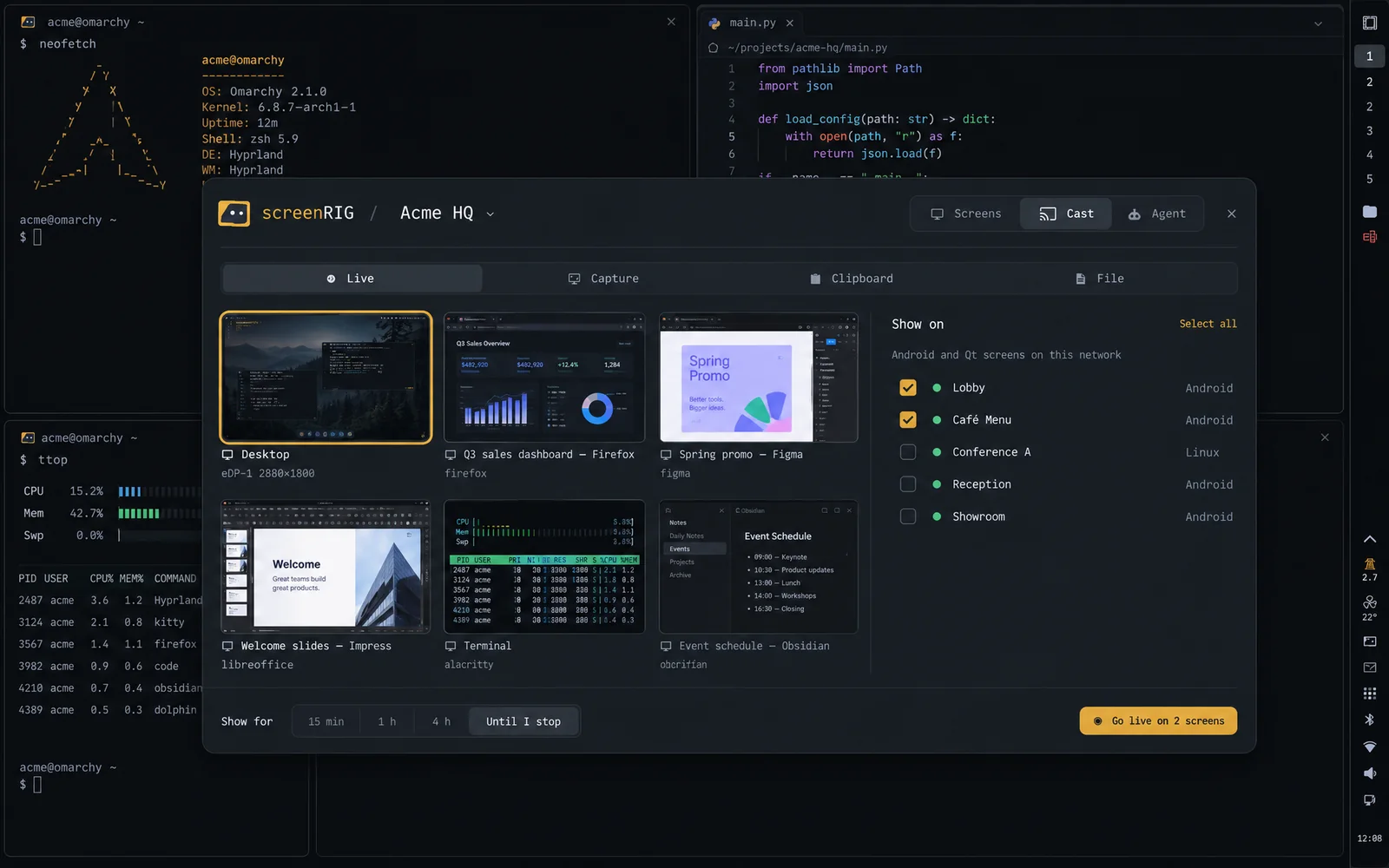
The Cast tab shows live thumbnails of your desktop and every app window. Pick one with the arrow keys and Return, tick the screens and go live. The cast streams to the Android and Linux Players on your network, for 15 minutes, 1 hour, 4 hours or until you stop it.
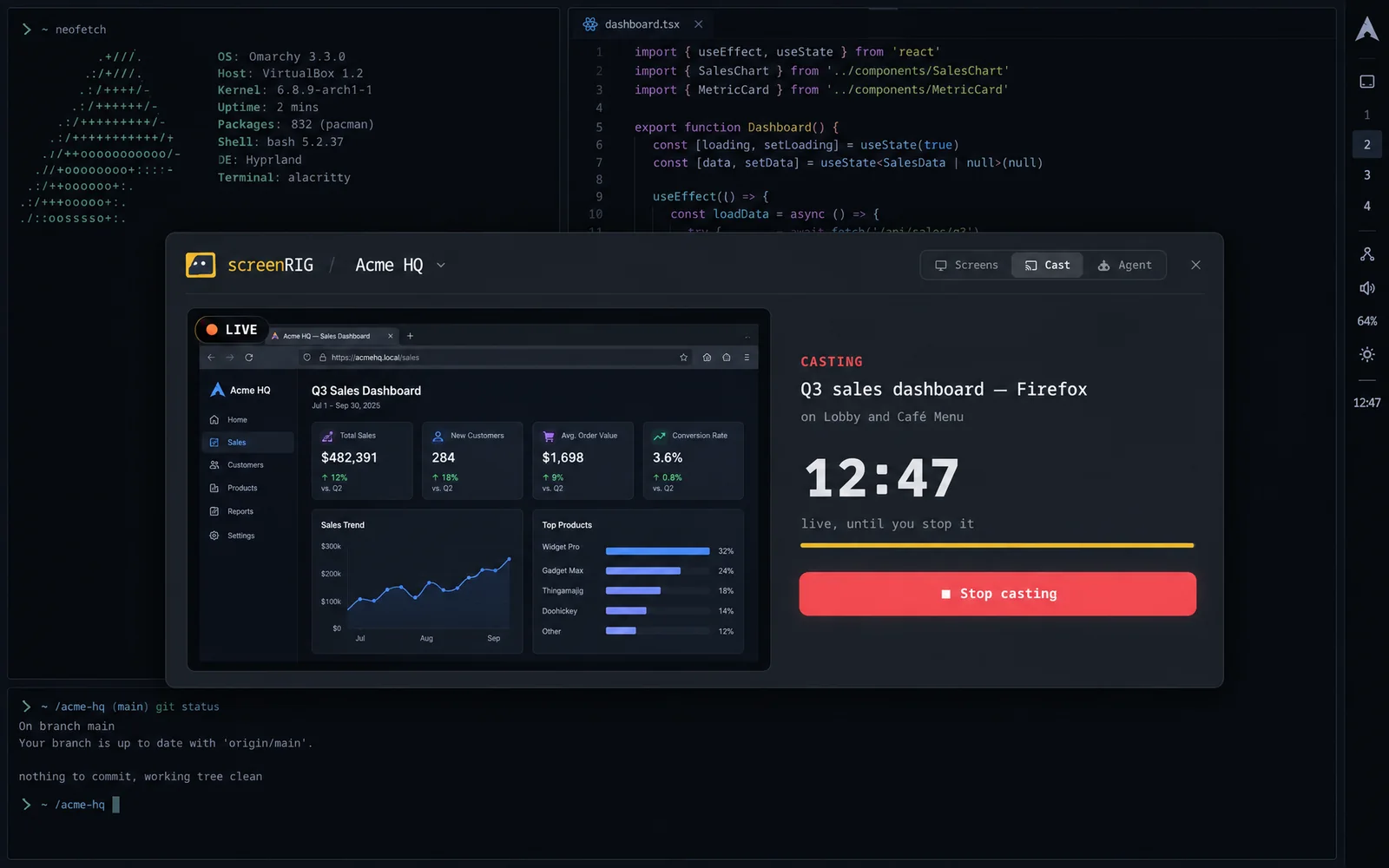
While it runs, the panel shows what is live, on which screens and for how long, with one button to stop. Middle-click the bar mark to stop from anywhere. For a quick share, right-click the mark to capture a region, or send the clipboard (a link or an image) or a file to screens for 5 to 60 minutes.
Ask your agent
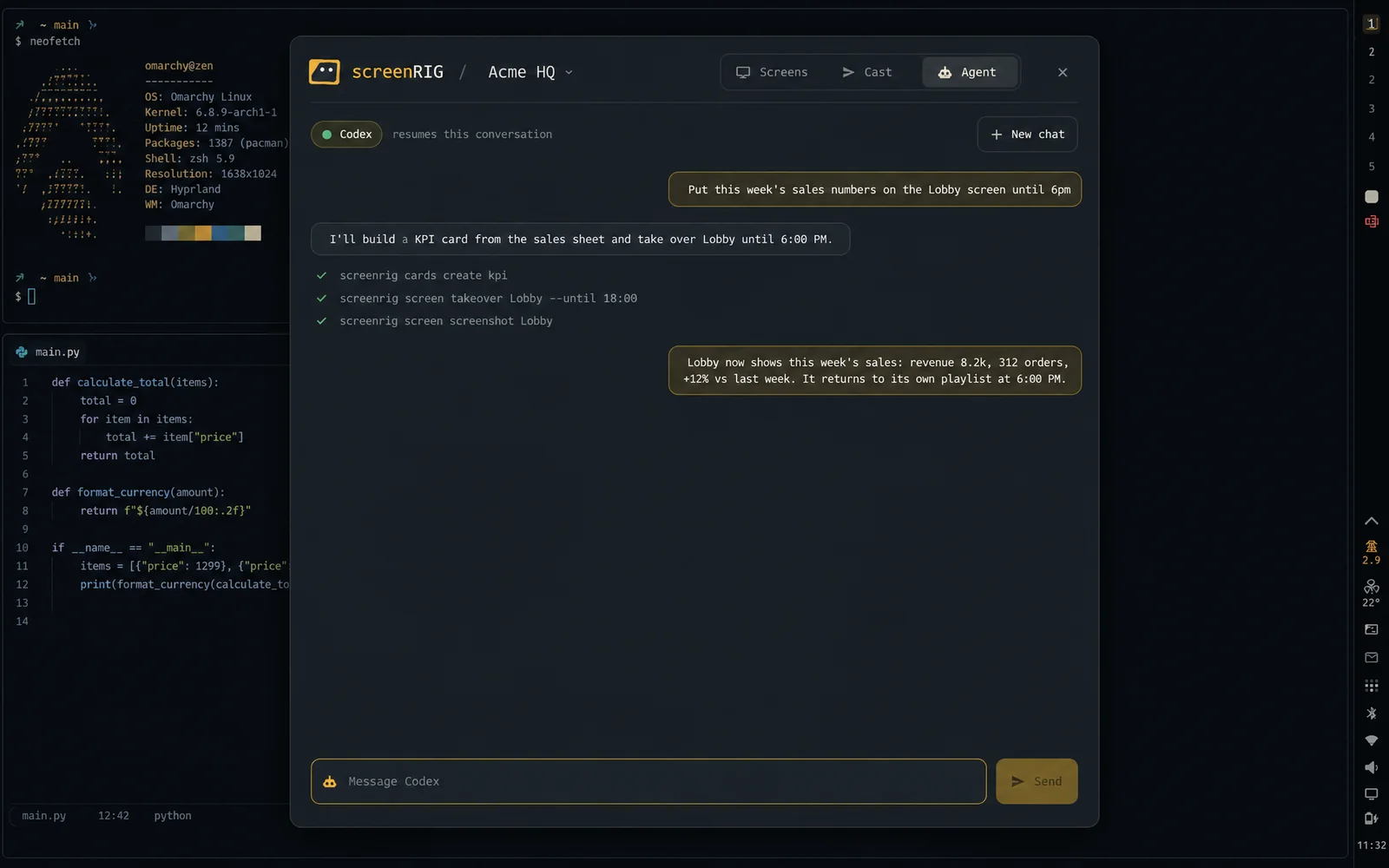
The Agent tab is a chat with your Omarchy default agent, Claude Code or Codex, with the screenRIG skill loaded. Tell it what to put on which screen and for how long; it builds the content, publishes it, checks the screen and keeps the conversation across messages.
What it changes on your system
On first load the plugin links two commands into ~/.local/bin, adds a marked block of screenRIG rows to the Omarchy menu (your own rows stay), two desktop entries and a theme hook. Live casting asks first: after you press Allow, it opens TCP 8554 to your local network when ufw is on, and for window casts it answers the screen-share picker for the window you chose, running your previous picker for every other share. The first live cast downloads mediamtx and checks it against its published SHA-256.
One command undoes all of it and removes the plugin:
screenrig-omarchy teardown && omarchy plugin remove screenrig.omarchyRelated
More topics
screenRIG is free.
Install the official plugin, pair a screen and your agent publishes to it.