What you need
- A TV, stick or box with Android TV or Google TV, on Android 9 or later. Tablets and signage boxes on Android 9 or later run the same Player.
- An AI agent with the screenRIG plugin. Start installs it with one paste.
Not sure which Android your device runs? On Google TV open Settings, then System, then About. On older Android TV open Settings, then Device Preferences, then About.
Get the Player from Google Play
On the TV, open Google Play, search for screenRIG and install the Player (Google Play listing). Updates arrive through Google Play and keep your pairing.
No Google Play on the device? The sideload guide shows how to install the same Player another way. Pick one route per device: to move from Google Play to a sideload, remove the Play version first and pair again.
It starts on its own and comes back after Home
After a restart or a power cut, the Player starts by itself once the TV or stick is on. That is Start on boot, and it is on by default. Turn on Home screen in the Player's Settings and the Player also returns to the front within about two seconds whenever Home, Android settings or another app takes over the screen. On Android 10 and later, both ask you to allow Display over other apps once.
The Player plays from the device's own storage, so a dropped network does not stop it. The kiosk mode guide walks through Start on boot, Home screen and the screen saver.
Press OK for the Player's menu
Once the screen is paired, press OK on the remote. A small menu opens over what is playing. Rename the screen, switch to another playlist, step to the next or previous page, and set brightness and volume. It closes by itself after a minute.
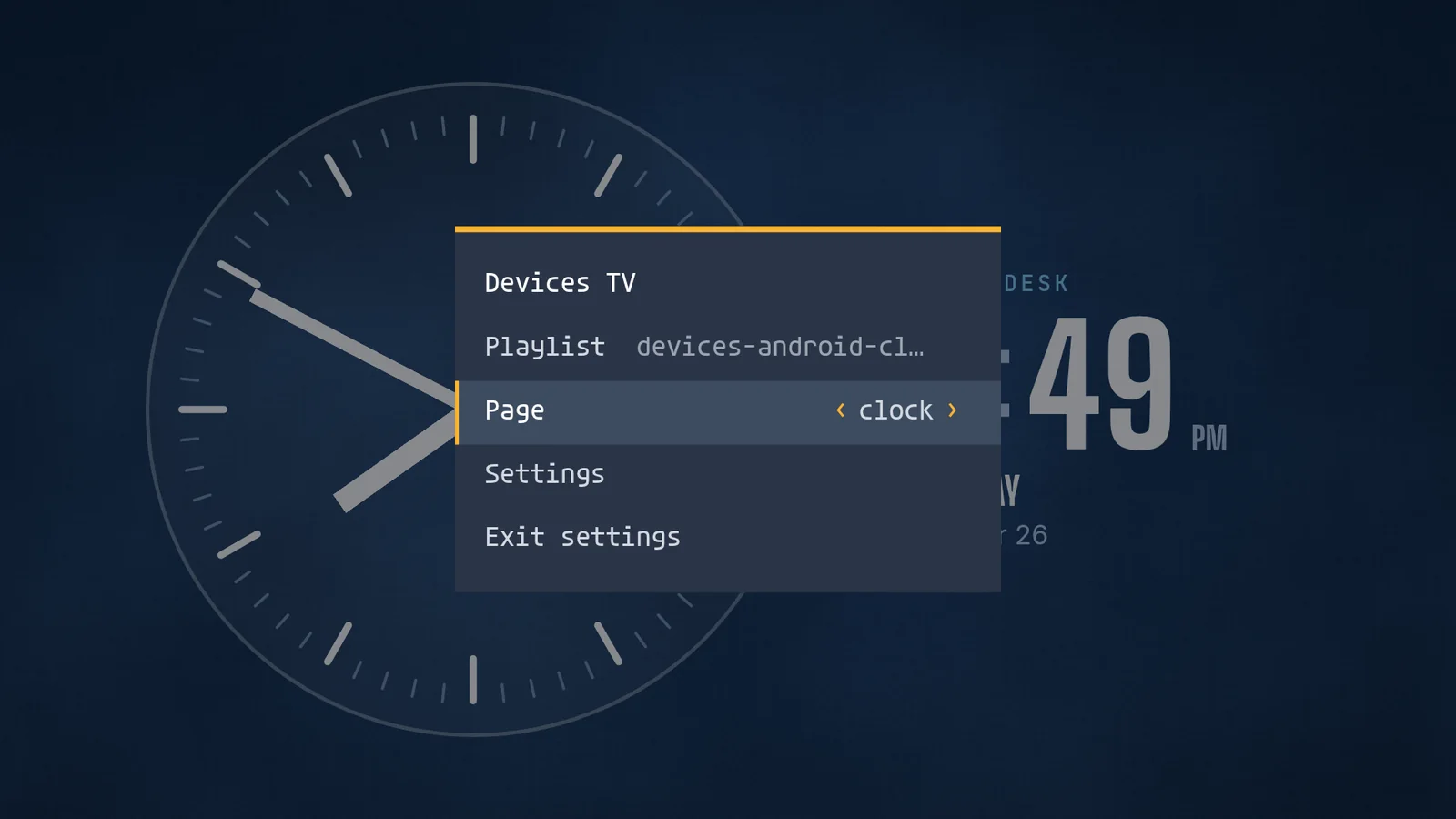
What an Android screen can show
- A live camera. The Player opens your camera's address itself, over your own network, with no relay. The camera guide covers the camera side, and the Amazon Signage Stick page walks through a full camera page.
- Video up to 4K. The Player plays what the device can decode, so a 4K clip needs a device that handles 4K.
Managed devices
A device set up as device owner gives your agent more control: restart it, switch its backlight and read its CPU temperature. The Player guide lists what every Player reports and switches.
Next, a stick we tested
Using a Walmart stick? See how an onn. 4K Streaming Device came through a three-minute network outage.
Related
screenRIG is free. Pay only if you want more.
Install the official plugin, pair a screen and your agent publishes to it.