What you need
- A BRAVIA with Android TV or Google TV, on Android 9 or later. The TV is the player, so you need no stick or box.
- An AI agent with the screenRIG plugin. Start installs it with one paste.
An older BRAVIA that Google Play will not offer the Player to can use a stick instead, such as the onn. 4K Streaming Device plugged into the BRAVIA.
Checked on 2026-10-26 on two BRAVIA models. Both ran the released Player, installed the same way. On the BRAVIA 4K GB nothing needed allowing. On the BRAVIA 4K VH21 the Player asked once to display over other apps, and choosing Open settings and allowing it was all it took.
Install it on the TV
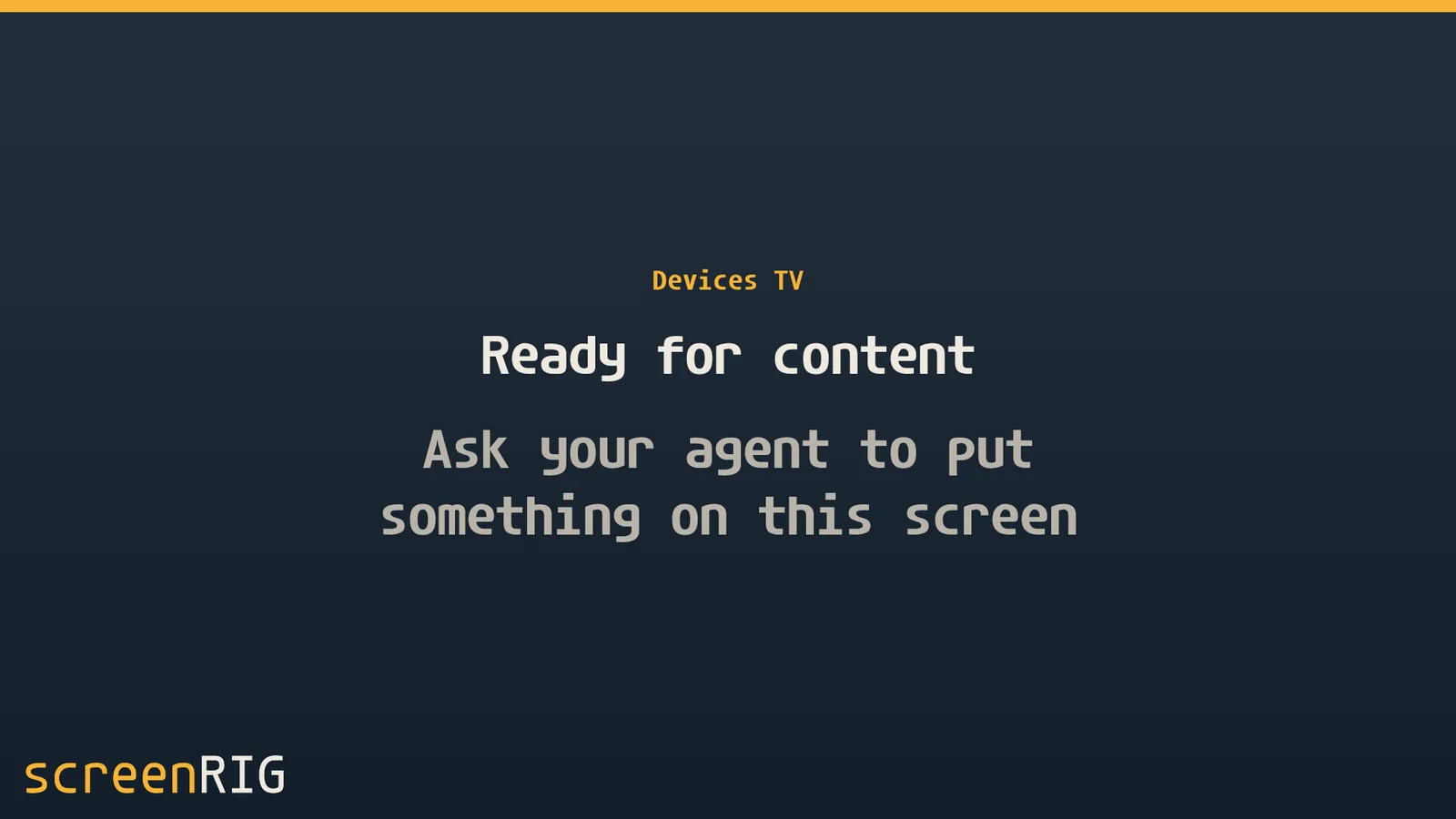
On the TV, open Google Play, search for screenRIG, install the Player (Google Play listing) and open it. It shows a code full screen. Once your agent claims the code, the TV rests on the name your agent gave it, above Ready for content, until something is published.
No Google Play, or you would rather sideload? Sony documents the routes for Android TV and Google TV, and a USB drive on Professional Displays. The sideload guide follows them for the Player. Menus vary by model and country, so use Sony's Help Guide for yours. Sony warns that allowing unknown sources makes the TV and your data more vulnerable to apps from outside Google Play, and on Professional Displays recommends switching the permission off again after the install.
Stop the TV switching itself off
A sign runs for days with nobody at the remote, and Sony TVs have settings that turn the TV off when nobody uses it. Sony names them differently by model and not every model has every one. Turn them off in the TV's own menus:
- Idle TV standby, also called Idle TV power off or Turn off TV after: set it to Off or Never. On Android TV it is under Device Preferences, Power, or BRAVIA settings, Eco. On Google TV it is under System, Power and energy, Energy saver.
- Sleep timer: turn it off.
- Put device to sleep, in the screen saver settings of Android TV 9 and 10: set it to Never.
- Auto shut-off, on models that have it: turn it off. It switches the TV off when it sees no input signal.
Sony's idle power-off article and automatic power on or off article list each menu path, and its Eco page describes Idle TV standby and Auto shut-off.
On the Player's side, Start on boot, the Home screen setting and the TV's screen saver choice keep the Player in front. The kiosk mode guide has the steps for all three.
Pro mode on BRAVIA Professional Displays
Sony's BZ professional displays have a Pro mode built for signage (BZ L, J, H and F and BZ40P, BZ35P and BZ30P). Open Pro settings and choose Start Pro mode, and the display restarts into it. Three Pro settings do the work after a power cut:
- Initial input source, Android app opens the Player whenever the display powers on. In Apps, choose Enable for the Player and set both together. Sony says the other enabled option deletes the app's data when the display turns off.
- AC power on, Always on turns the display on whenever power returns.
- Periodic restart turns the display on, off or restarts it on a schedule by day and time. Sony says a periodic restart leads to stable operation.
For 24/7 operation, Sony's monitor settings page says some energy-saving options may need to be turned off.
What to put on it first
Not sure what to show? See what to ask your agent for: menus, announcements, schedules and more.
Sources
- helpguide.sony.net/tv/gaep1/v1/en/01-02_05.html
- helpguide.sony.net/tv/naep2/v1/en/contents/TP1002006251.html
- helpguide.sony.net/tv/ggar1/v1/en-142/07-02_14.html
- www.sony.ca/en/electronics/support/articles/00282671
- www.sony.co.th/en/electronics/support/articles/00032613
- pro-bravia.sony.net/setup/pro-settings/classic
- pro-bravia.sony.net/setup/pro-settings
- pro-bravia.sony.net/setup/device-settings/classic
Related
screenRIG is free. Pay only if you want more.
Install the official plugin, pair a screen and your agent publishes to it.