What we tested on the stick
Checked on 2026-10-26 on a real onn. 4K Streaming Device. Other onn. Google TV models run the same Player, which needs Android 9 or later.
| We tried | What happened |
|---|---|
| Video | Everything we tried played: H.264 up to 4K (even 60 frames a second and upright video), HEVC including 10-bit 4K, VP9 and AV1. |
| Photos and graphics | JPEG, PNG, GIF and WebP all showed, even an 8K JPEG. |
| Network off for 3 minutes | The content kept playing. An offline note appeared after 60 seconds, and the stick was back online 19 seconds after the network returned. |
| Restart with no network for 6 minutes, and a new playlist sent meanwhile | The saved content was on screen at startup. The new playlist took over 50 seconds after the network returned. |
| Storage nearly full | The screen warns you at about 400 MB free. With only 17 MB free and a restart, the saved content kept playing and the pairing stayed. |
| Home button, Android settings, sleep and wake | With Home screen on, the Player was back in front about 2 seconds after Home or Android settings covered it, and it stayed there through sleep and wake. |
What you see when the network drops
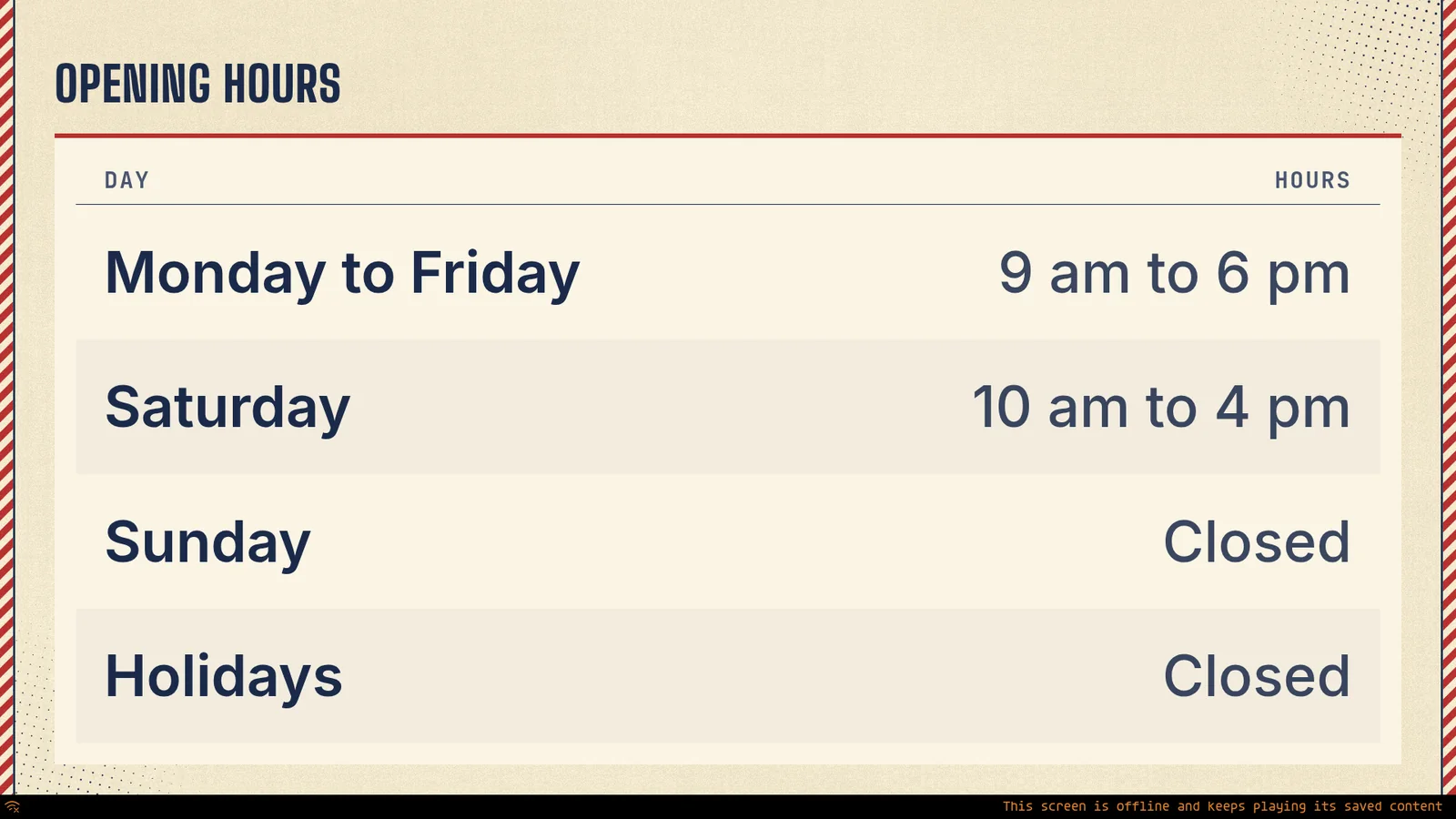
The stick keeps the page on the screen and says so in one line at the bottom. The conversation above ran on a test screen, the Player in a desktop browser with its network cut, and this is what that screen showed.
Set it up in three steps
- On the stick, open Google Play, search for screenRIG and install the Player (Google Play listing). No Google Play route? The sideload guide shows another way.
- Open the Player. It asks to display over other apps, so that it can start on boot. On this stick the settings page that opens lists no apps. That is fine: the stick grants the permission by itself, and the Player starts at boot after a restart.
- Read the code on the screen to your agent. Press OK on the remote for the Player's menu, which the Android TV page describes.
Updates install in place and keep your pairing.
Why it comes back after Home
Google TV's own home screen outranks any app, so the Player cannot take the Home button. With Home screen turned on in the Player's Settings, it returns to the front within about two seconds of Home, Android settings or any other app taking the screen, and again after wake and restart.
When the TV is off, the stick sleeps
With the TV off or on another input, the stick goes to sleep about five minutes after the last input, and it wakes when the TV selects it again. A dark stick with the TV off is that sleep, not a fault.
What a stick costs to run
Walmart sets the stick's price. screenRIG is free. Pay only if you want more. Downloads are free, so a screen that loops all day costs nothing to keep running, and the stick is the only thing you buy. The pricing page lists the allowances.
Next, boot straight into your signage
Want the stick to start your signage on its own and stay on it? The Android TV kiosk mode guide walks through the three settings.
Related
screenRIG is free. Pay only if you want more.
Install the official plugin, pair a screen and your agent publishes to it.