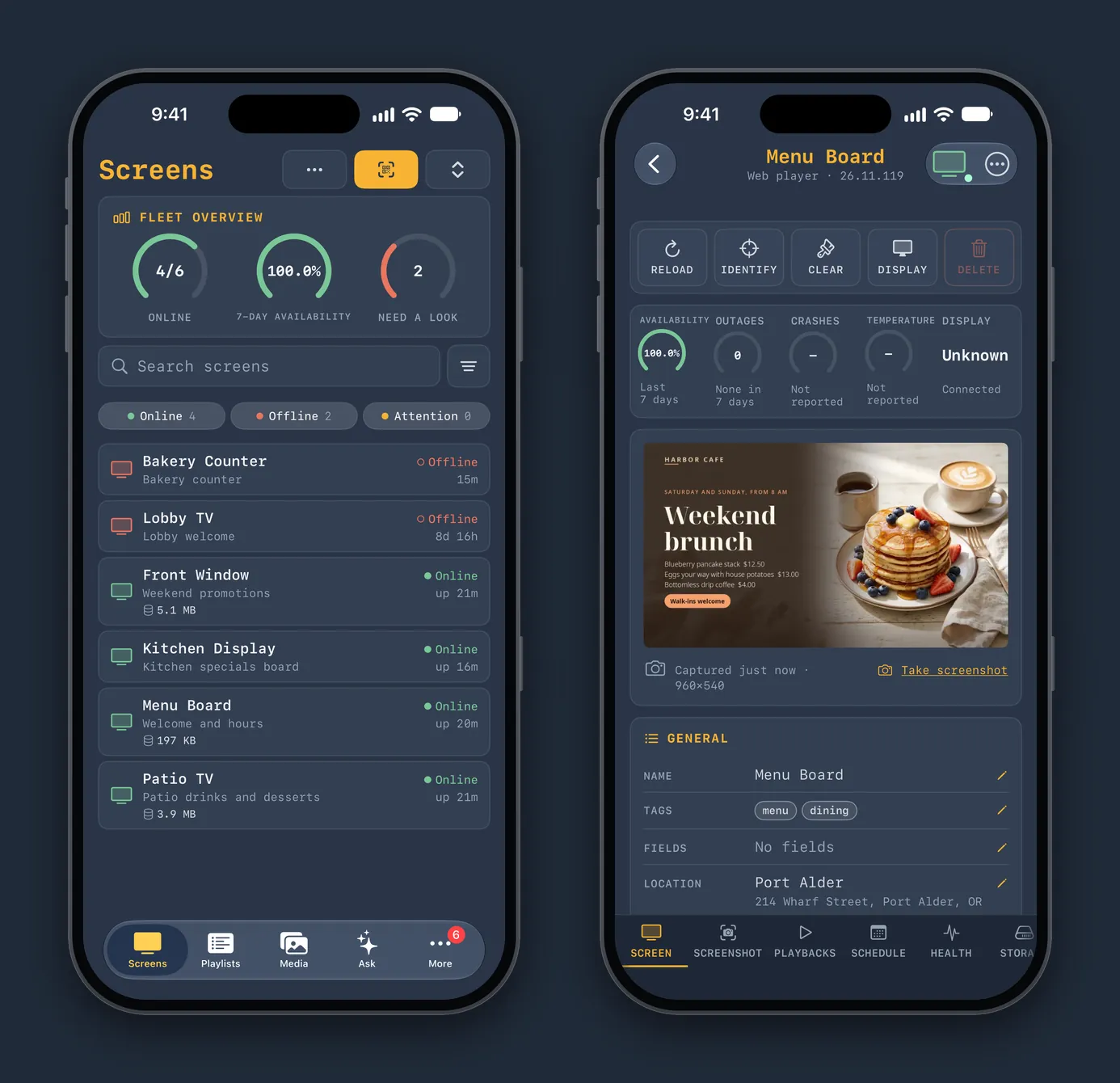
See every screen live
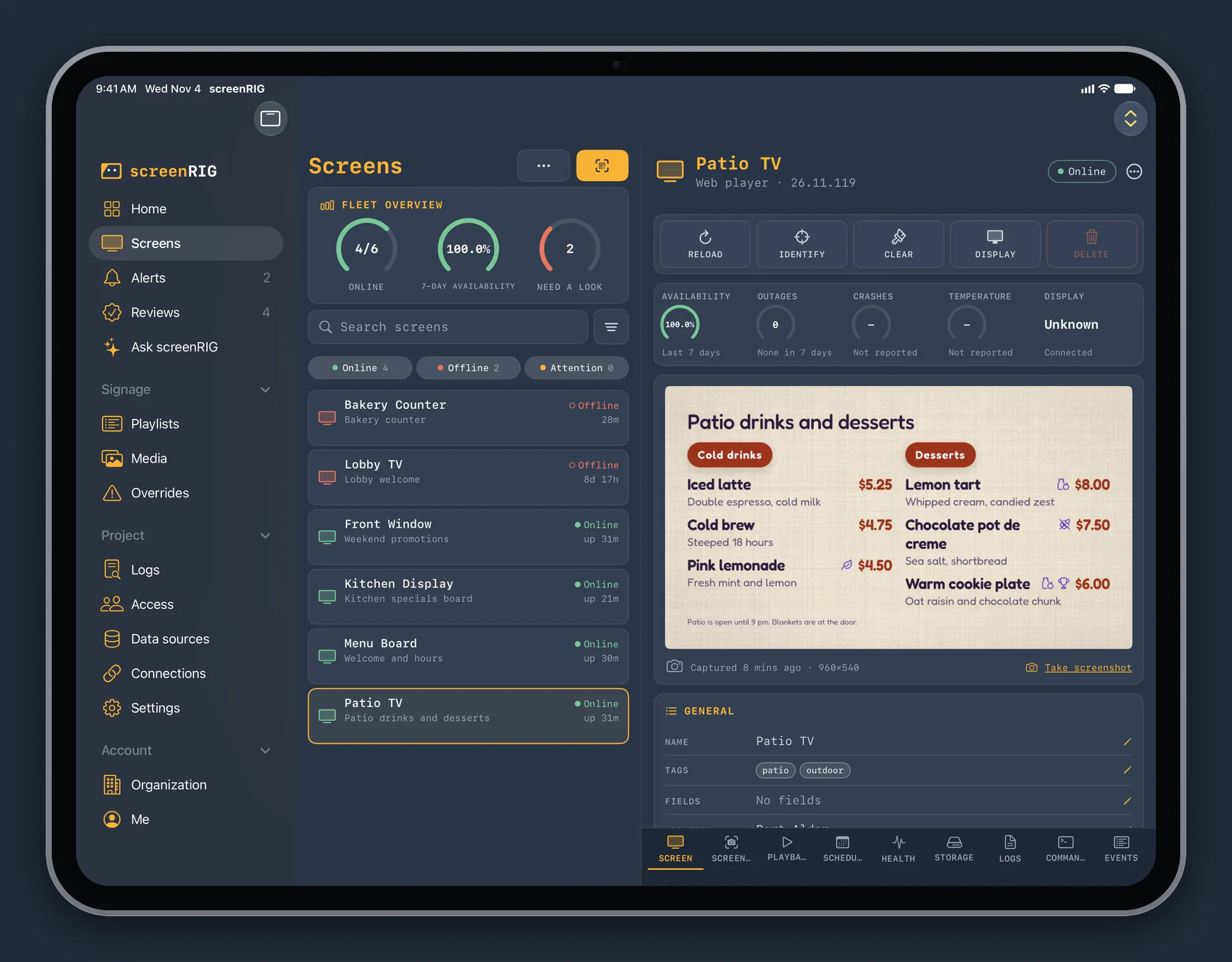
The Screens page lists every screen with its state, its playlist and how long it has been up, and a fleet overview counts how many are online. Open a screen to see a live screenshot of what it is playing right now, its availability and health, and its schedule. Reload it, identify it, clear its cache or switch its display on and off with one tap, or start a live view.
Pair a new screen by typing the six characters it shows, scanning its QR code or choosing a photo of the code. Organize screens in folders with tags and a location, and write an NFC asset tag that opens the screen when someone taps it.
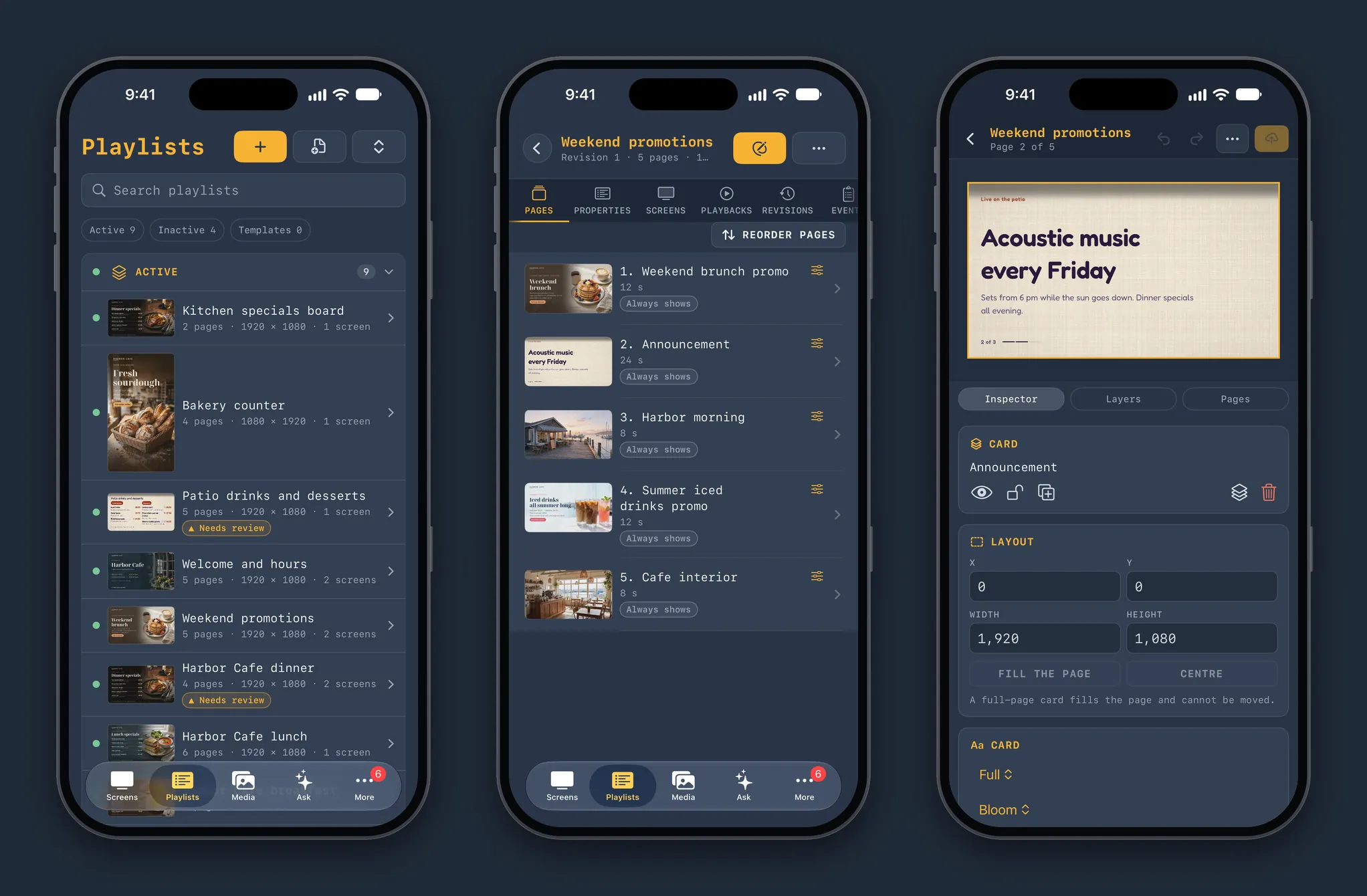
Playlists and pages
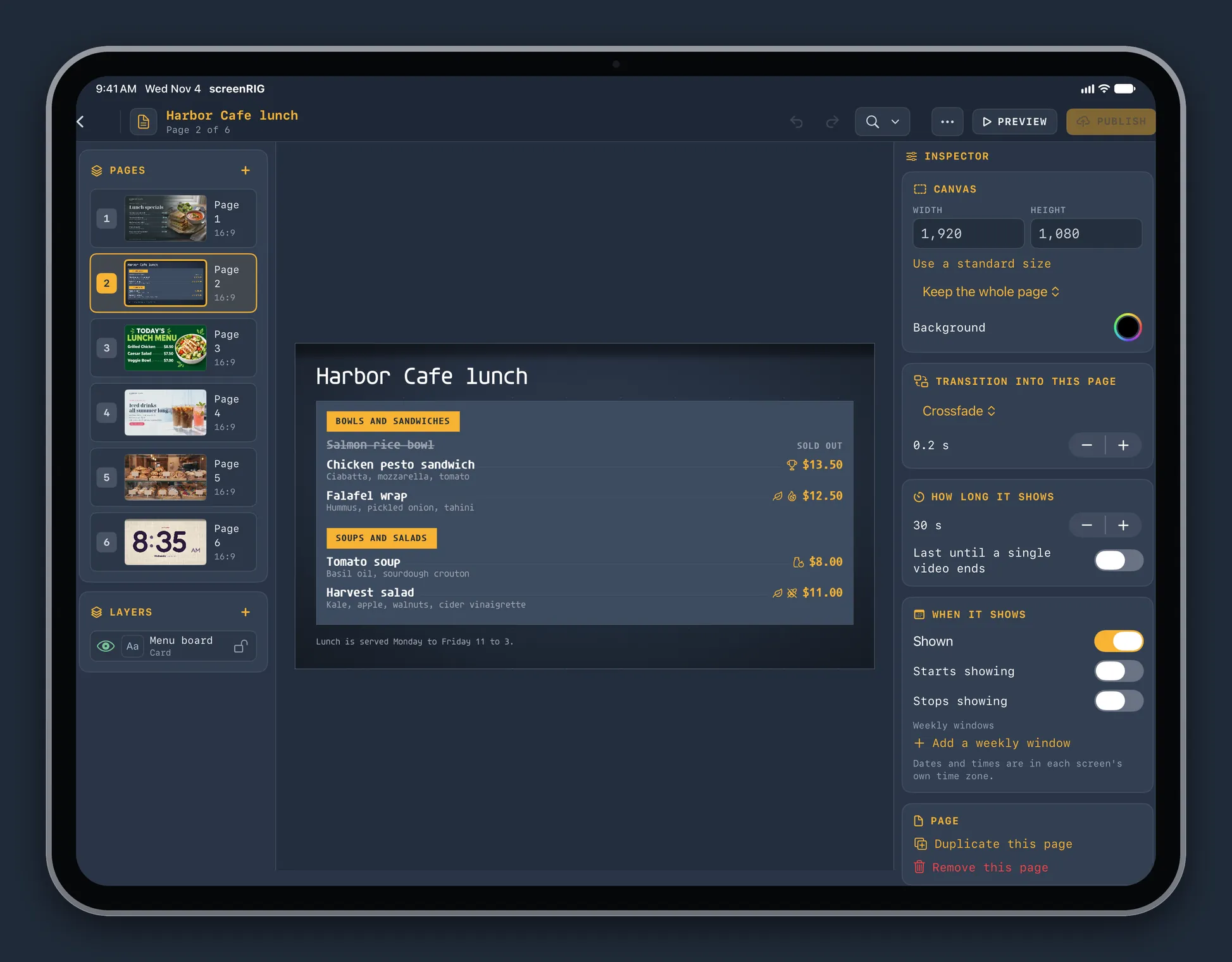
Playlists lists every playlist with its pages, its size and the screens that play it, and marks the ones with a change waiting for review. Open one to reorder pages, set how long each page shows and choose when it shows. The page editor places text, images, video and the 200+ ready-made apps on a canvas, with an inspector for every layer. Templates turn a layout into a short form you fill in, and a new revision goes live when you promote it.
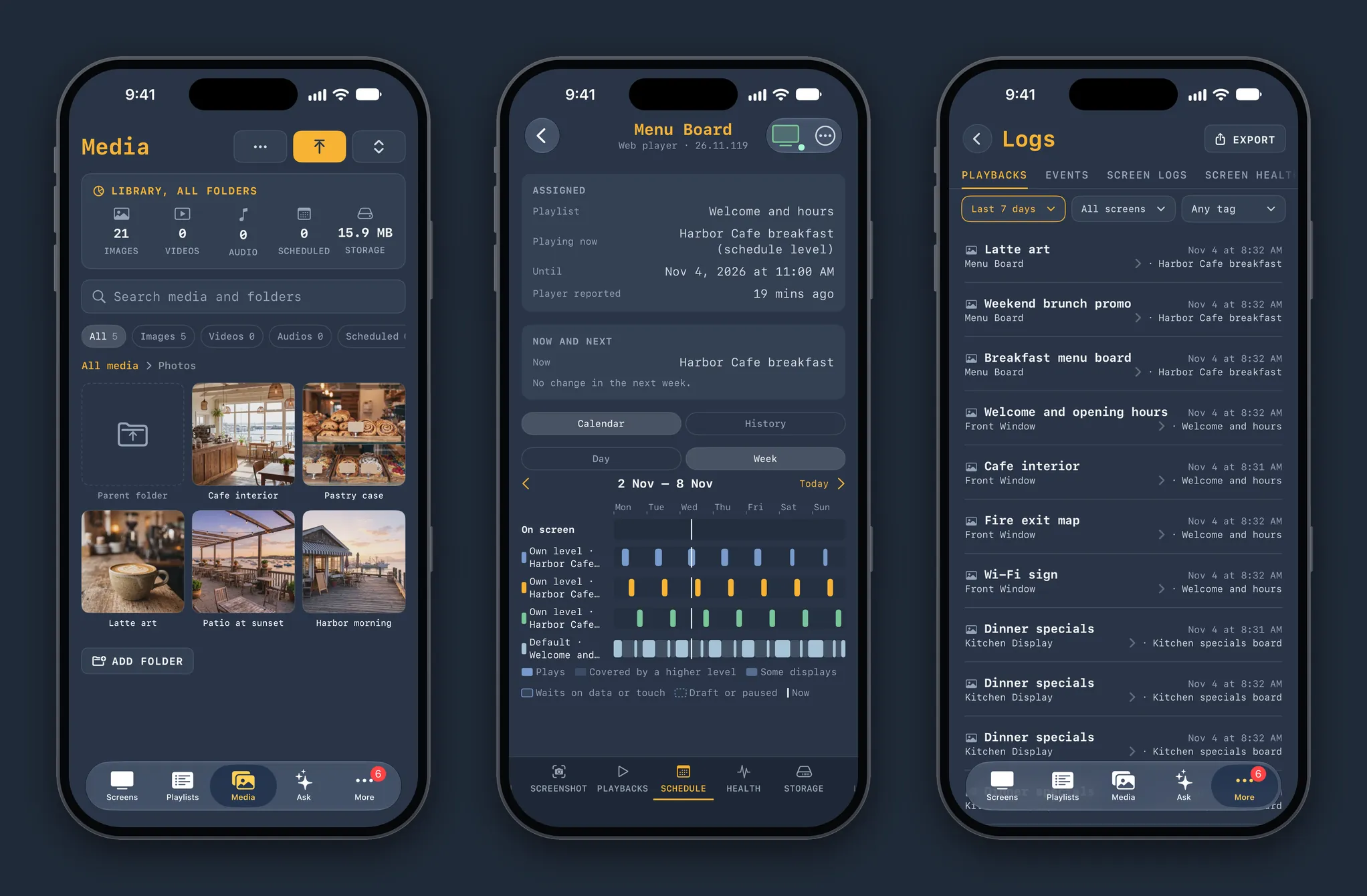
Media, schedules and play logs
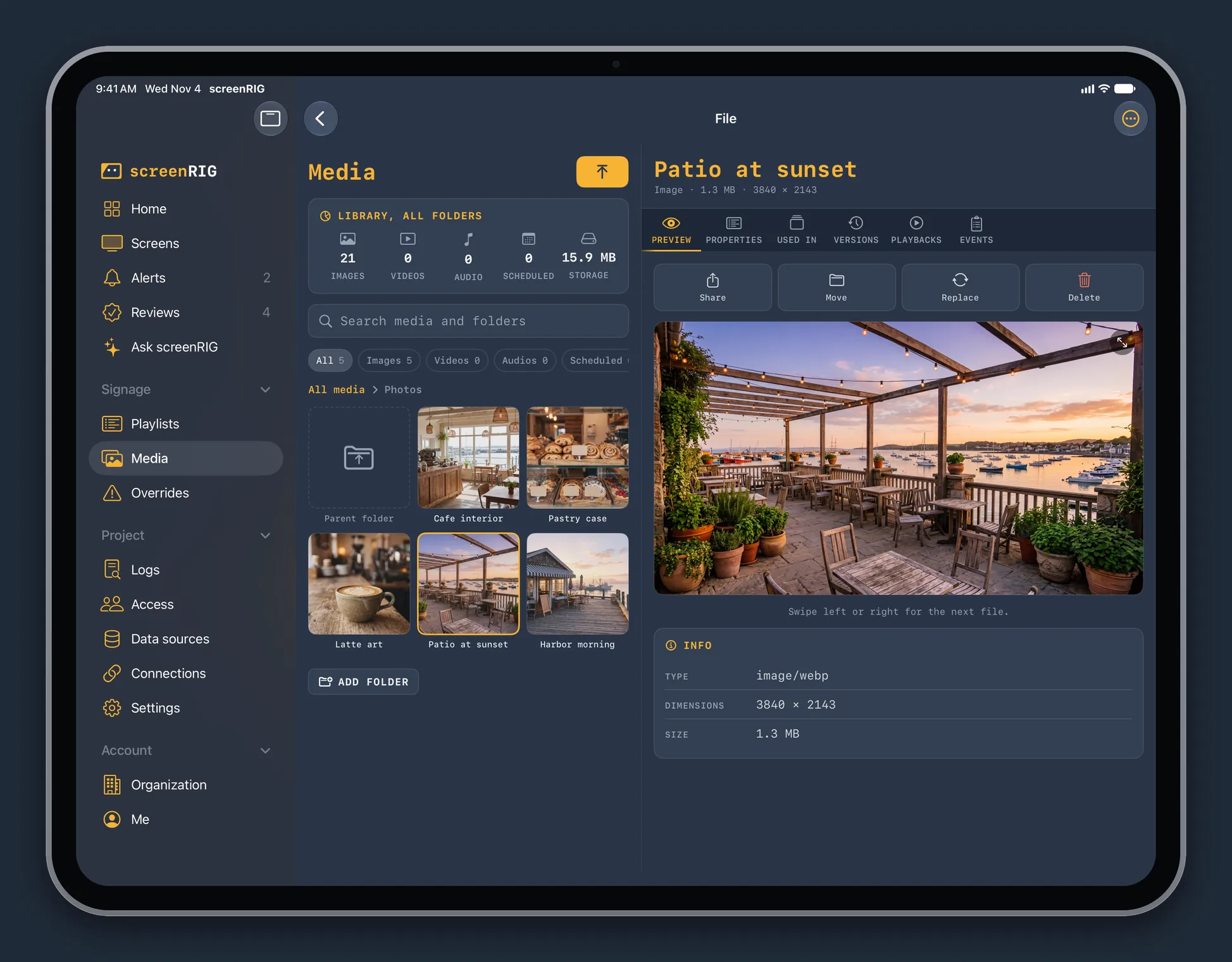
The media library holds your images, video and audio in folders, with previews and a version history. Replace a file in place and every playlist that uses it updates. Upload photos and files from your phone, send anything to screenRIG from the share sheet in any app, or keep a Photos album or an iCloud Drive folder in sync with a media folder.
A screen's Schedule tab draws its week as lanes: what plays, what a higher level covers and what waits on data or a touch. Import a schedule you already have, or open the calendar for a tag. Logs list every play, event, screen log and health report, and export them as a file.
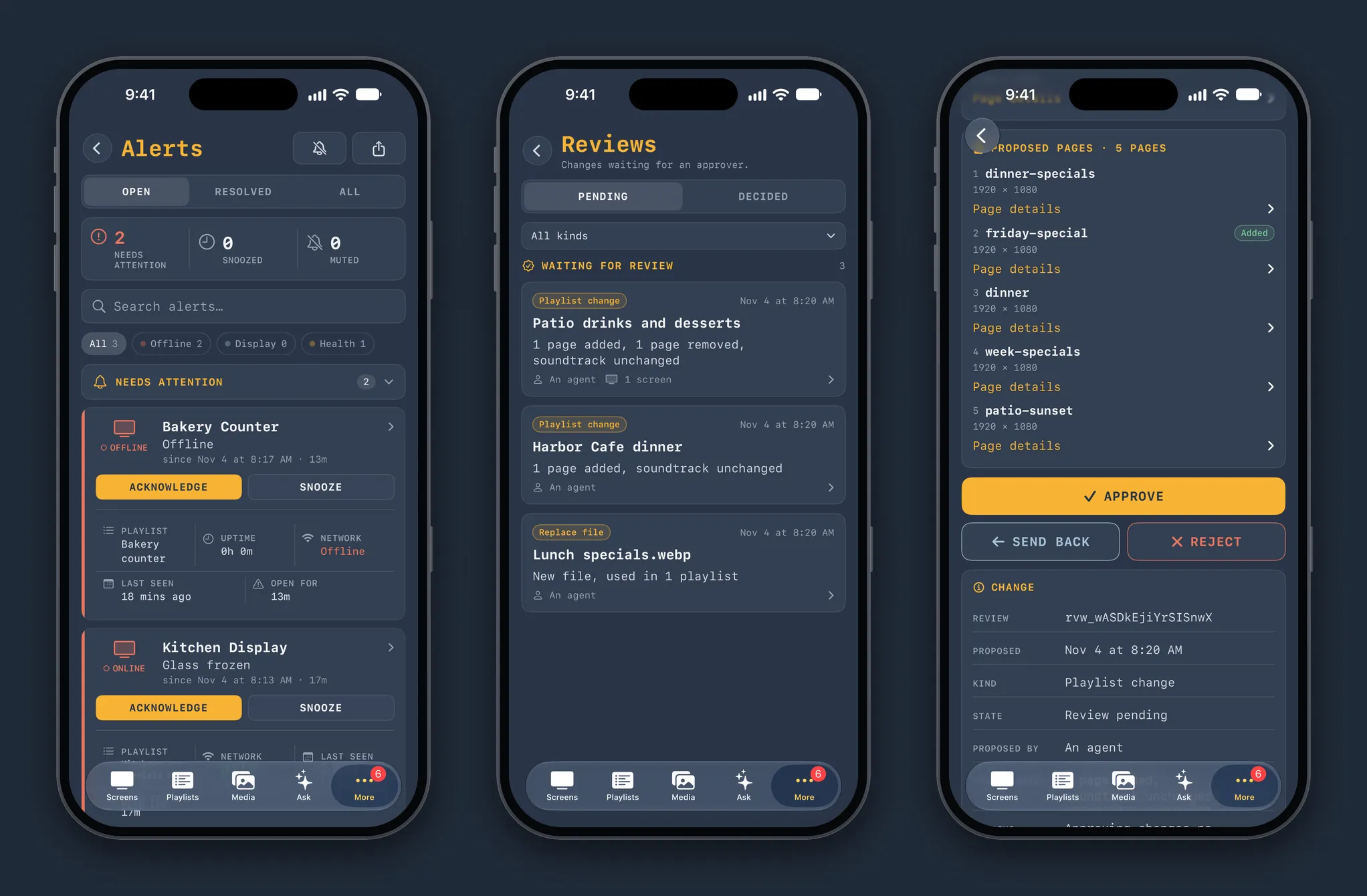
Alerts and reviews
Alerts tells you when a screen goes offline, shows a frozen or blank picture, runs hot or loses its display. Acknowledge or snooze an alert on the page, or from the notification itself, where you can also reload the screen. When your agent proposes a change, Reviews shows the playlist or file that would change, the live version next to the proposed one with the pages added, changed and removed, and the agent's note. Approve it, send it back or reject it.
Ask screenRIG
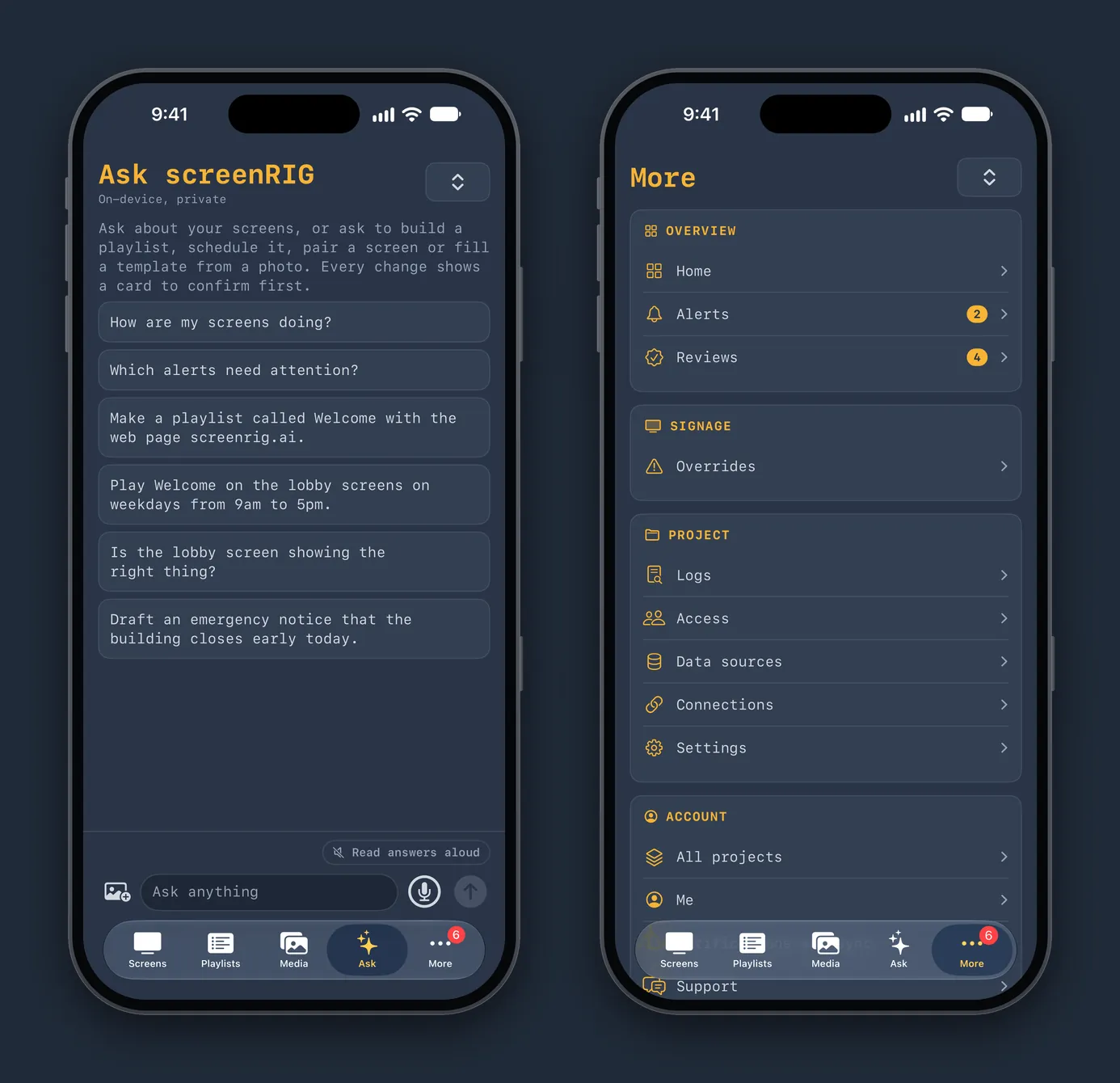
Ask screenRIG answers questions about your screens, alerts, reviews and logs in plain language, typed or spoken. It runs on the device with Apple Intelligence, on iPhones and iPads that support it, so your questions are answered on the device. Ask it to make a playlist, schedule it, pair a screen or fill a template from a photo, and it shows a card for you to confirm before anything changes.
Every action in the app is also a Siri and Shortcuts action: pair a screen, make a playlist, add pages, schedule a playlist, take screens over, send an emergency notice, reload or reboot screens, take a screenshot, acknowledge alerts and approve reviews, among others. Say it to Siri or build it into a shortcut.
The More page holds the rest: Home with the fleet at a glance, Overrides for takeovers and the emergency notice, Logs, Access for people, groups and agents, Data sources, Connections and Settings.
Widgets, Live Activities and controls
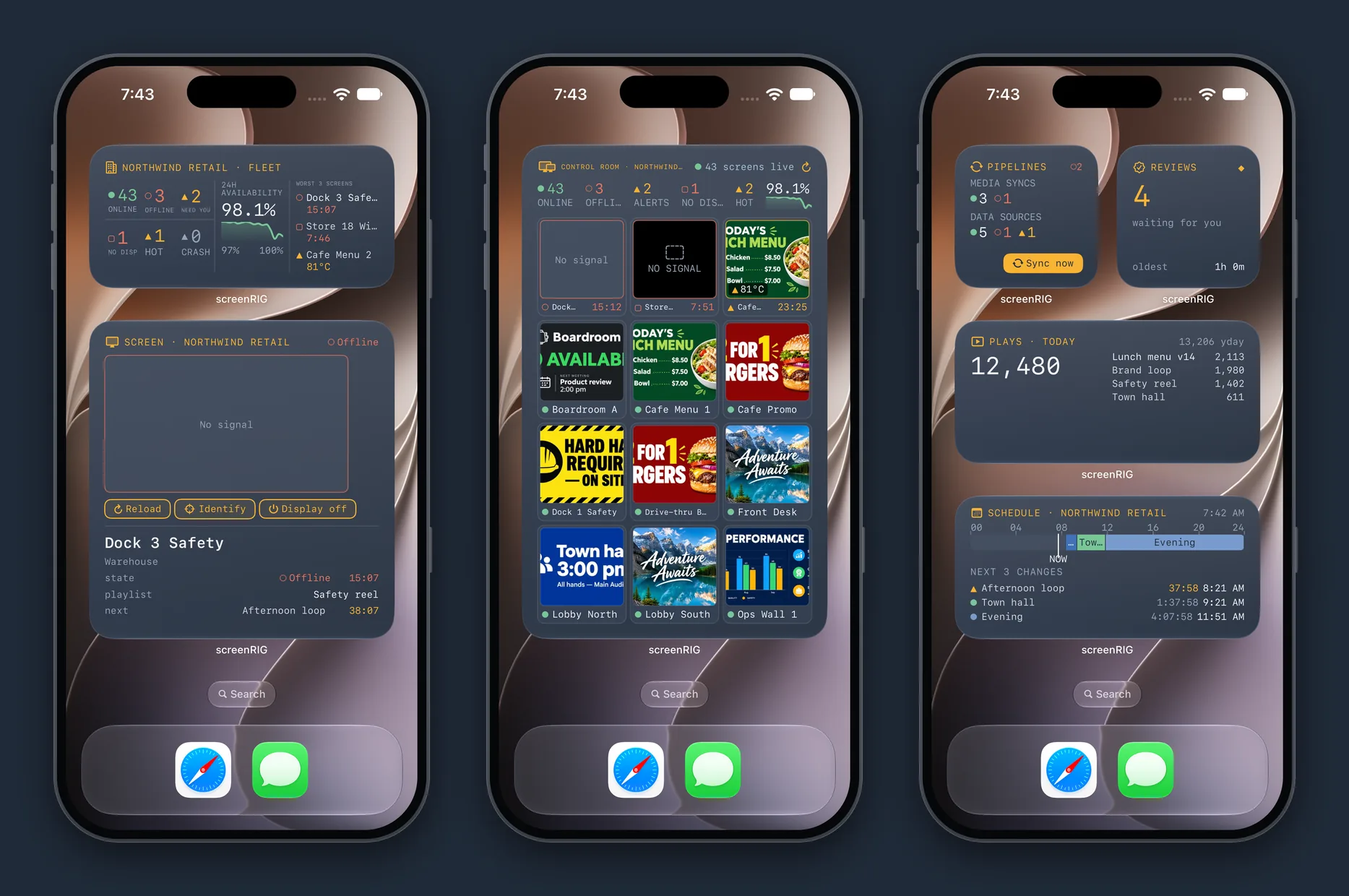
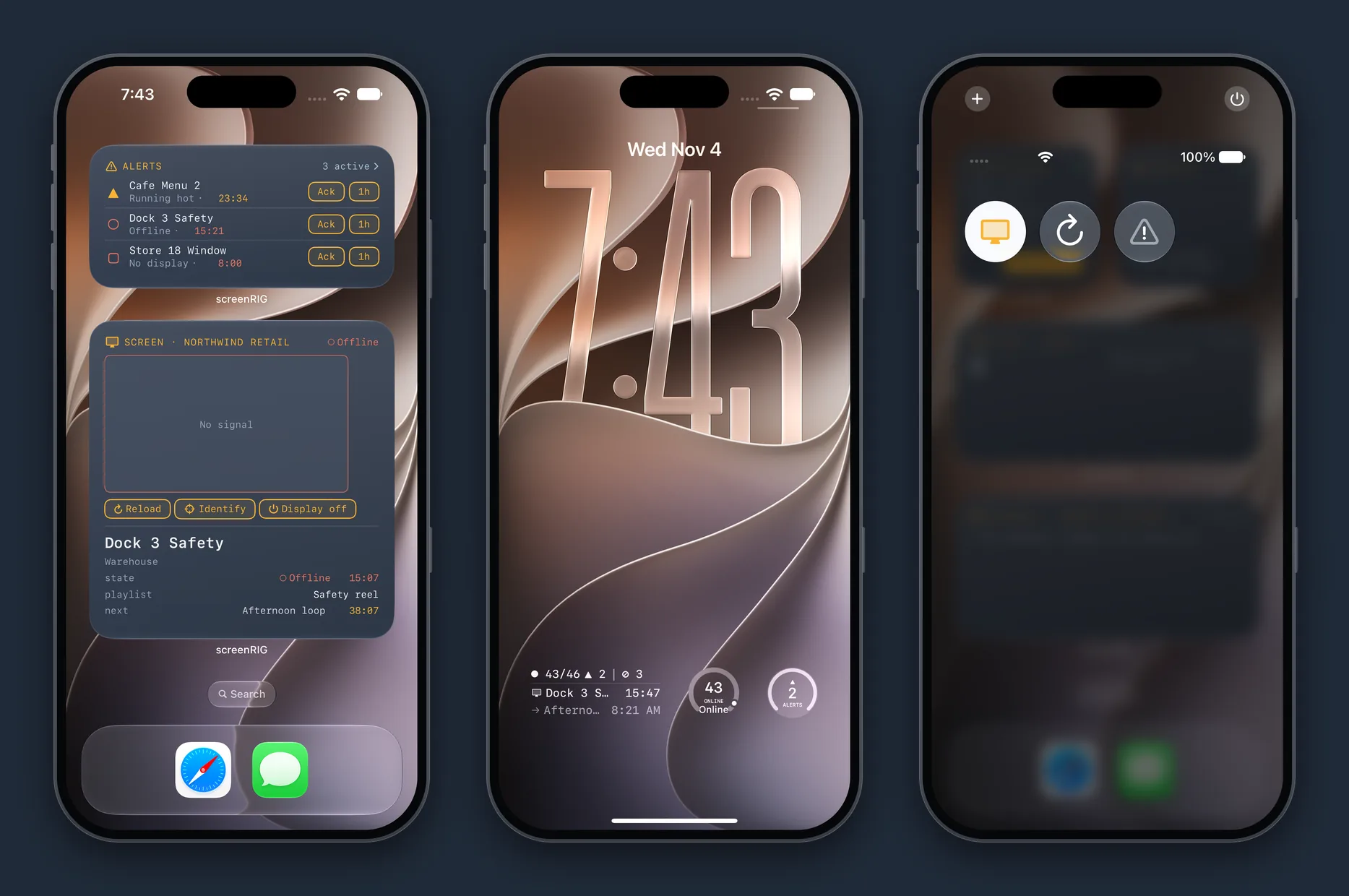
Put the fleet on your Home Screen. Fleet pulse counts the screens that are online, offline and in need of you, with 24-hour availability and the three worst screens. The Screen widget shows one screen's live picture with Reload, Identify and Display off buttons. Control room is a wall of live thumbnails, one for every screen. Alerts, Reviews, Plays today, Pipelines and Schedule have widgets of their own, and the Alerts widget carries Ack and one-hour snooze buttons. The widgets below show a demo fleet of a retail chain with 46 screens.
The Lock Screen carries a fleet summary, an online count and an alerts count. Control Center has three controls: Display power, Reload and Emergency notice. Live Activities show a publish rolling out to screens, an open incident, a live view and an upload in progress, on the Lock Screen and in the Dynamic Island.
Apple Watch
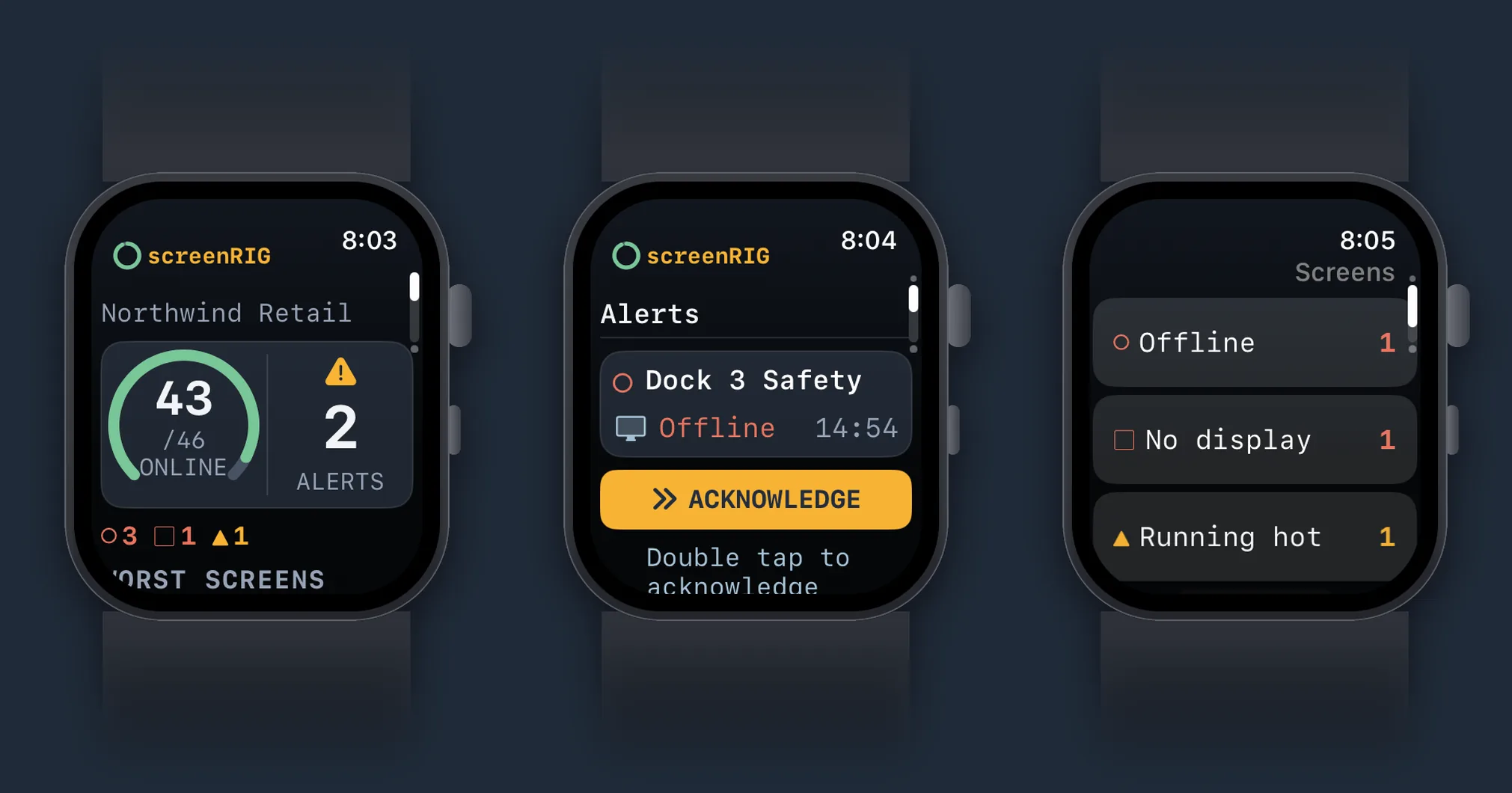
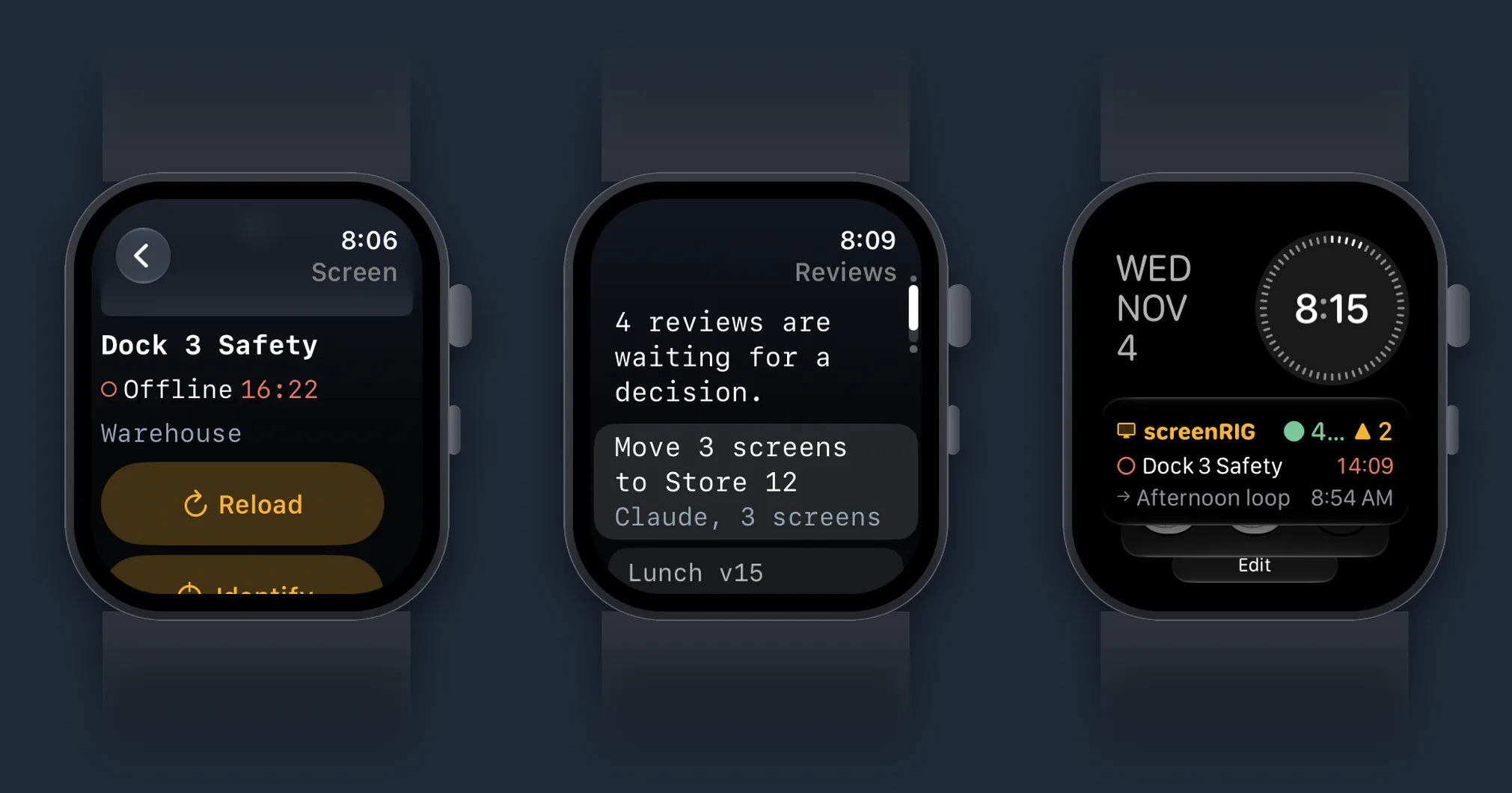
The Watch app has five pages you move through with the Digital Crown: Fleet, Alerts, Screens, Reviews and Notice. Double tap to acknowledge an alert or snooze it for an hour, reload or identify a screen, look at its latest screenshot, approve or reject a review, and show or take down the emergency notice from your wrist. Complications put the fleet pulse and your open alerts on a watch face and in the Smart Stack.
iPad
On iPad the app opens as a split view with a sidebar. The Screens list sits beside the selected screen's live picture and controls, the playlist editor shows its pages, canvas and inspector together, and the media library opens a file's preview and details beside the grid. Alerts, Reviews, schedules and Home use the extra room the same way.
One account for you, your agent and the dashboard
The app signs in with your screenRIG account, the one you use for the dashboard, and opens every project you belong to from the project switcher in the header. It sees the same screens, playlists, media, alerts and reviews your agent and the dashboard see, so a change made in one place shows up in the others. Handoff carries the page you are on to another of your devices, in the app or in Safari.
Your agent still builds the content: Start installs the plugin and pairs your first screen. The Player that plays content on an iPhone or iPad is a separate app, and the Downloads page lists it with every other Player.
Related
More topics
screenRIG is free.
Install the official plugin, pair a screen and your agent publishes to it.