Why a signage stick
A streaming stick is made for watching TV at home. The Amazon Signage Stick is purpose-built for screens in a business, with the signage app in the foreground all day. screenRIG pairs each stick as a screen of its own, so your agent publishes to it and checks what actually played.
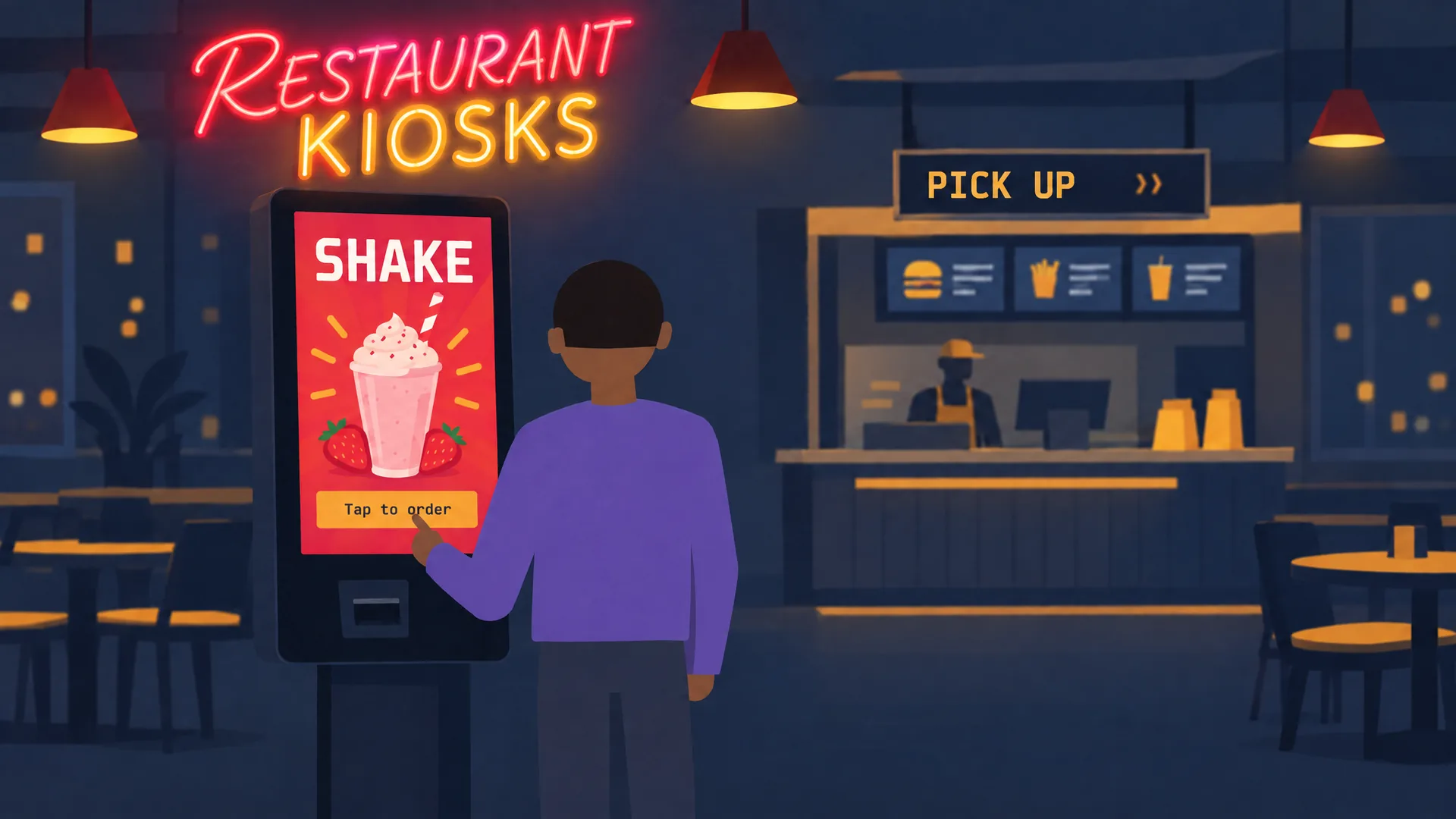 Restaurants
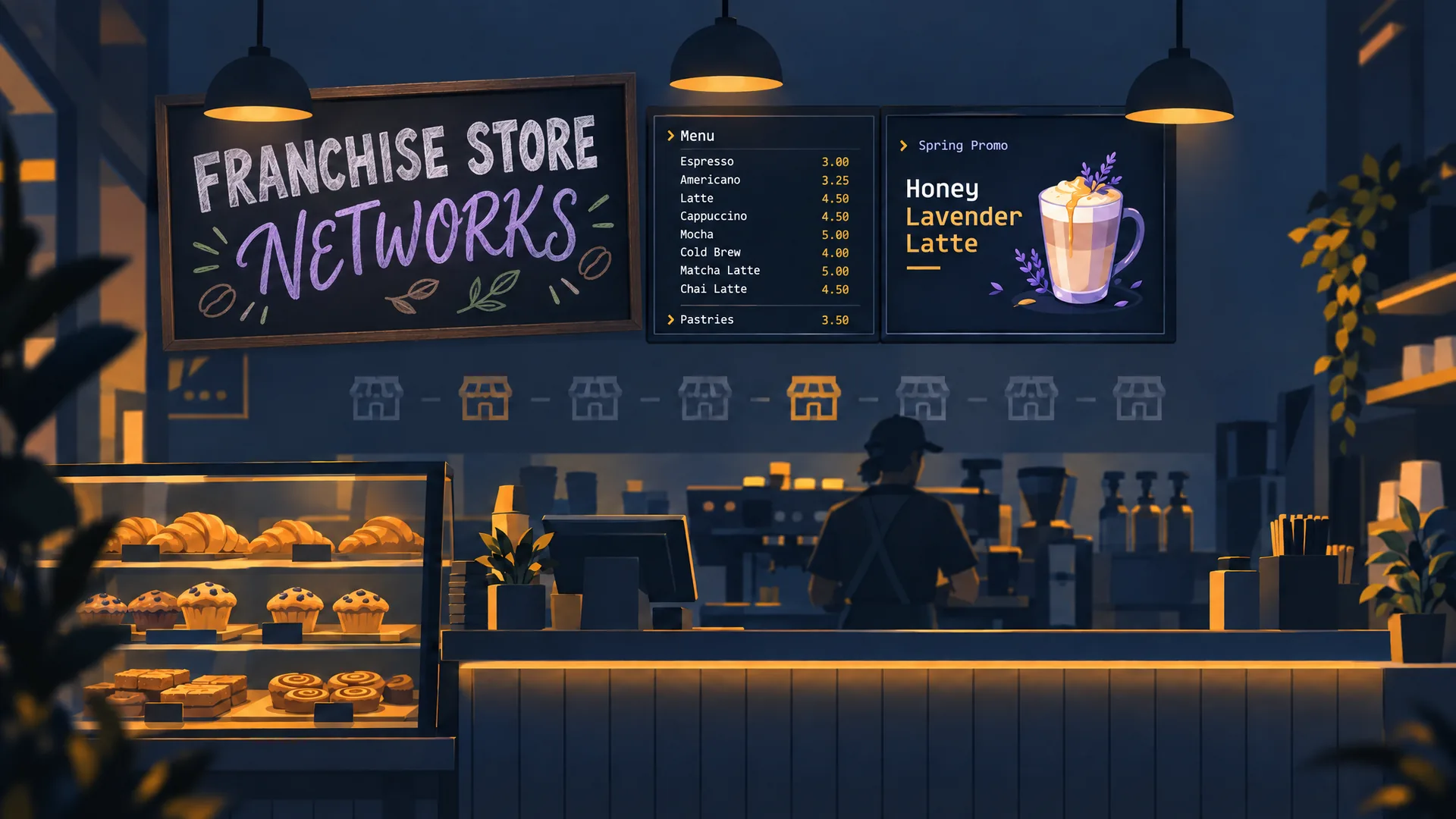 Retail stores
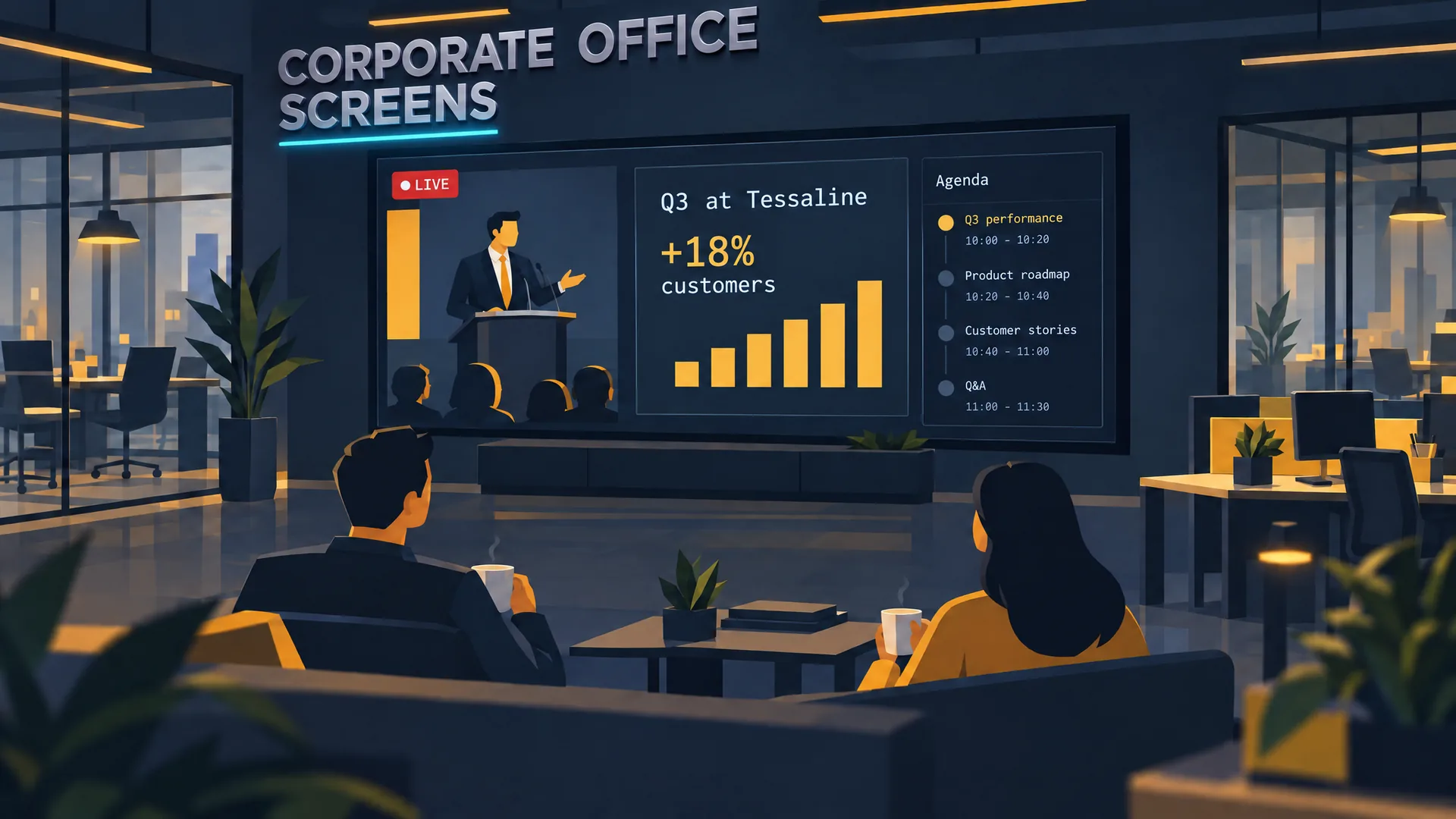 Offices
 Pharmacies
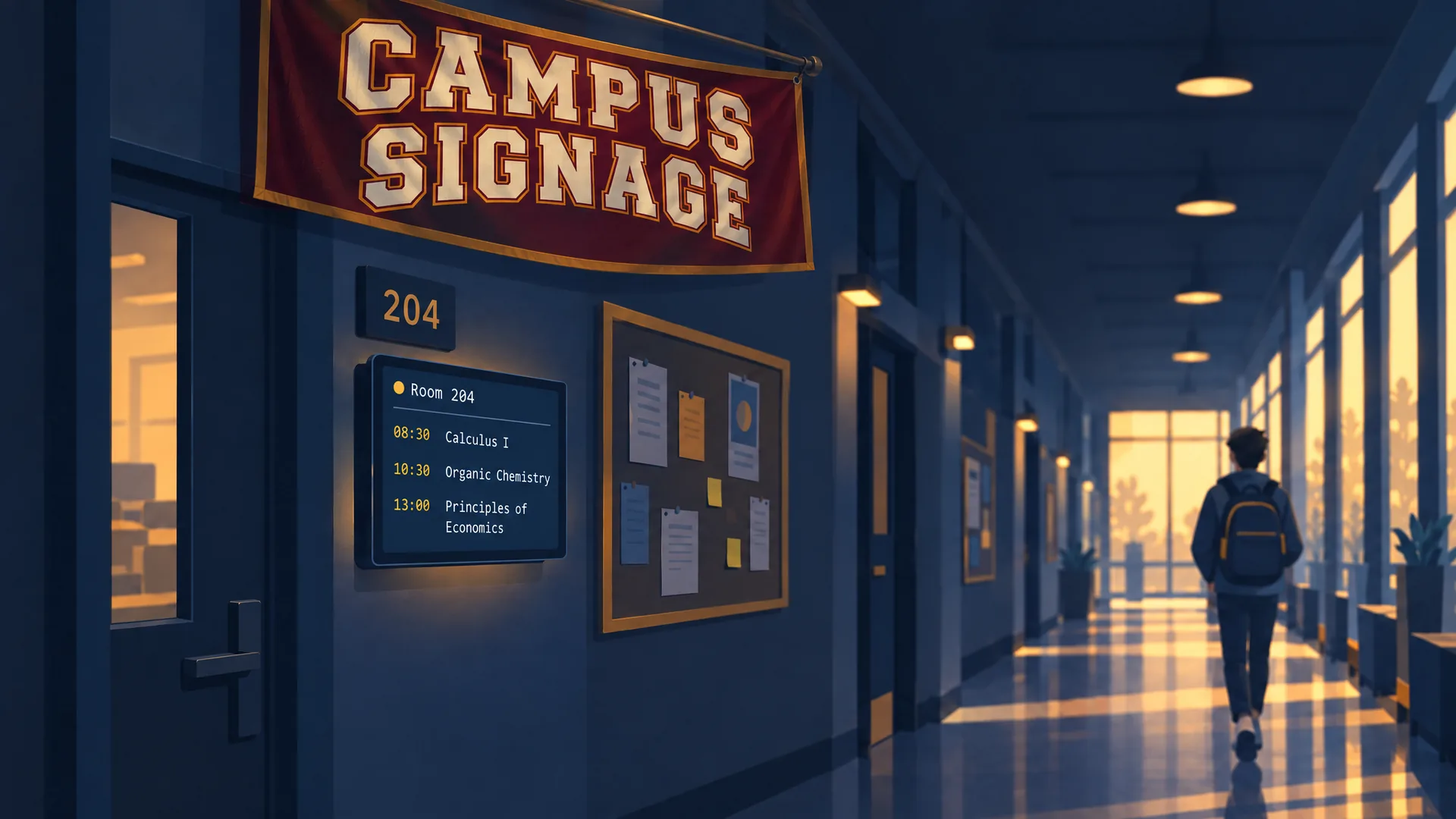 Campuses
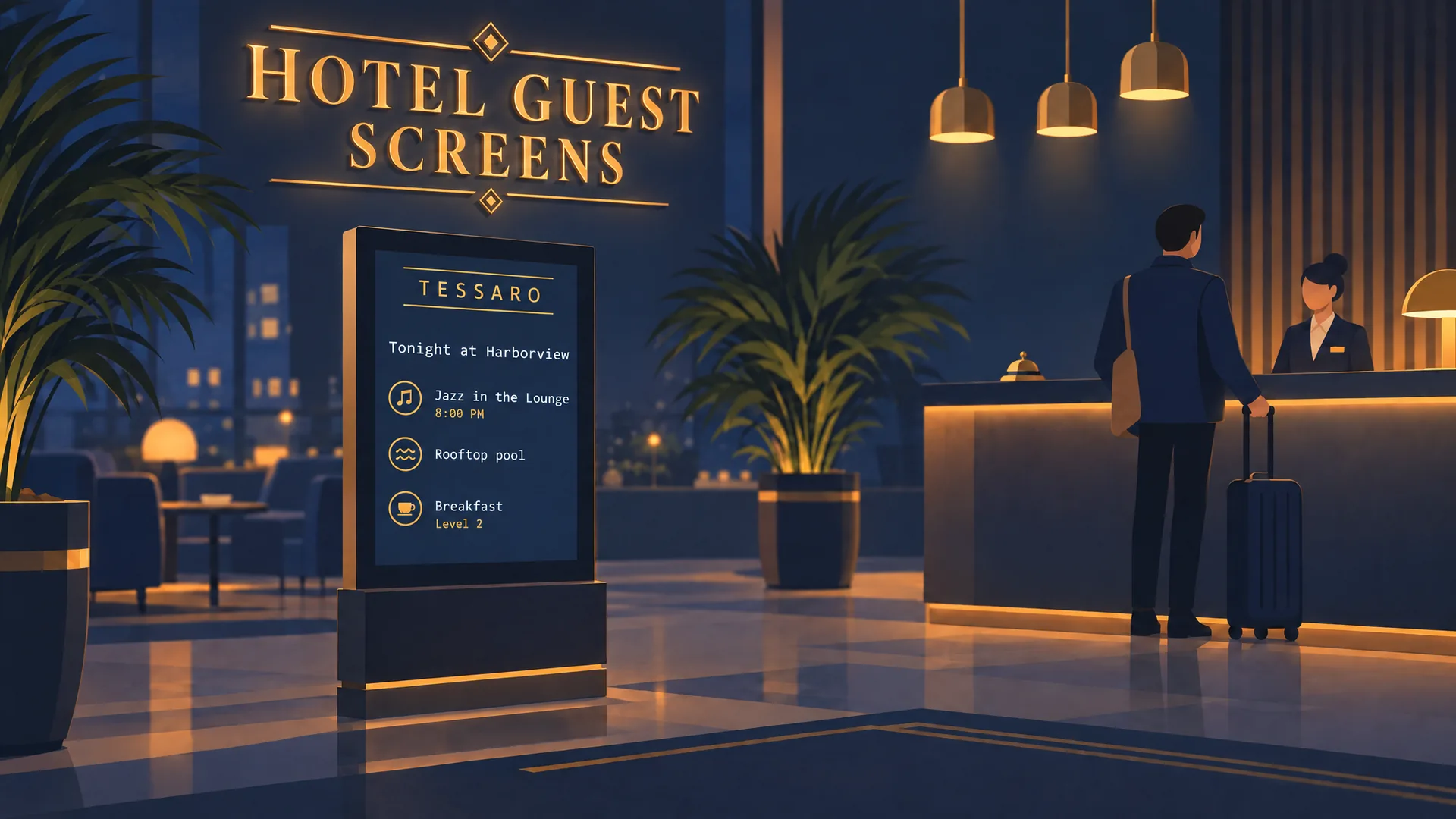 Hotels
Get an Amazon Signage Stick
Buy the Amazon Signage Stick from Amazon in the United States or Canada. Plug it into the display's HDMI port, connect it to your network, and install the Player.
Put the Player on the stick
- On the stick, open the Amazon Appstore listing, or search the Amazon Appstore for screenRIG Player, and install it.
- Launch it. The Player fills the screen with a pairing code.
- Give the code to your AI agent. It needs the screenRIG plugin, and Start installs it with one paste.
- Ask the agent for what the screen should show. It publishes, then checks a screenshot of the screen.
Start on boot is on by default, so the Player opens by itself when the stick restarts. On Fire OS 8 its one-time permission is granted from a computer; the Player guide has the steps. Updates arrive through the Appstore and keep the pairing.
What the stick plays
- Images, video and live streams. Video up to 4K, downloaded once and replayed from the stick's own storage, so a loop keeps playing when the internet drops.
- 200+ ready-made apps. Clocks, weather, menus, countdowns, dashboards and more, drawn by the Player itself.
- Web pages and custom apps. A dashboard or kiosk page your agent writes, kept open and refreshed.
- A live camera. The stick opens your camera's RTSP feed itself, over your own network, with no relay. The camera guide covers the setup.
The stick reports its health every fifteen minutes and whenever its display connection or power changes. Display power is an on-screen blackout driven by a schedule that runs on the stick even offline. The Player guide lists what every Player reports.
Who builds screenRIG
screenRIG comes from a team that has built and run enterprise signage for more than a decade, on tens of thousands of screens. Questions about the Amazon Signage Stick and screenRIG? Write to us.
Already have a Fire TV Stick?
The same Appstore listing installs the Player on compatible Fire TV Sticks. The Fire TV Stick page covers that setup; for screens in a business, the Amazon Signage Stick is the one to buy.
Related
screenRIG is free.
Install the official plugin, pair a screen and your agent publishes to it.