What do I need?
Three things, and you probably have two of them:
- A screen. A TV, a stick, a Raspberry Pi or a PC that is plugged into one. It runs the screenRIG Player, an app that shows a pairing code. TVs with Google TV or Android TV built in, the Amazon Signage Stick, Apple TV, Macs, Windows PCs, Linux, Raspberry Pi, BrightSign and Samsung and LG signage displays all have a Player, and any screen with a modern browser opens the web Player. The Downloads page lists each one.
- An agent that can run commands. A chat reply on its own sets nothing up, so the agent has to be able to run the plugin. Claude Code, ChatGPT dots and Codex, Gemini Spark, Grok Bot and Grok Build, Meta Muse and Hermes all can. The command line the plugin brings needs Node.js 22.23.4+, 24.22.1+ or 26.12.1+ in the place where the agent runs commands.
- The official plugin. It carries the skill and the command-line tool your agent uses to run screens. Your agent installs it from github.com/screenrig/plugin when you paste one sentence.
How does the agent put content on the TV?
Paste one sentence to your agent. It installs the official plugin:
Text I authorize you to install the official screenRIG plugin from https://github.com/screenrig/plugin.- Give the agent your email. It creates your project and emails you an invitation to the dashboard. Nothing waits on that email, so the agent carries on. Never paste a password or a token into the chat.
- Open the Player on the screen and read the code to your agent. It pairs the screen and names it.
- Say what should be on the TV. The agent makes the content, publishes it and asks the screen for a screenshot before it says it is done.
Each assistant has its own first step, such as two terminal commands or a message in an app. Start has the exact step for each agent.
What does it look like?
This is the whole first run from a recorded session on a test screen. The venue is made up.
- You
Use screenrig.ai to pair this screen. The code is ABC 234. Call it Devices TV.
- Agent
Paired. Devices TV shows PAIRING COMPLETED and is online.
- You
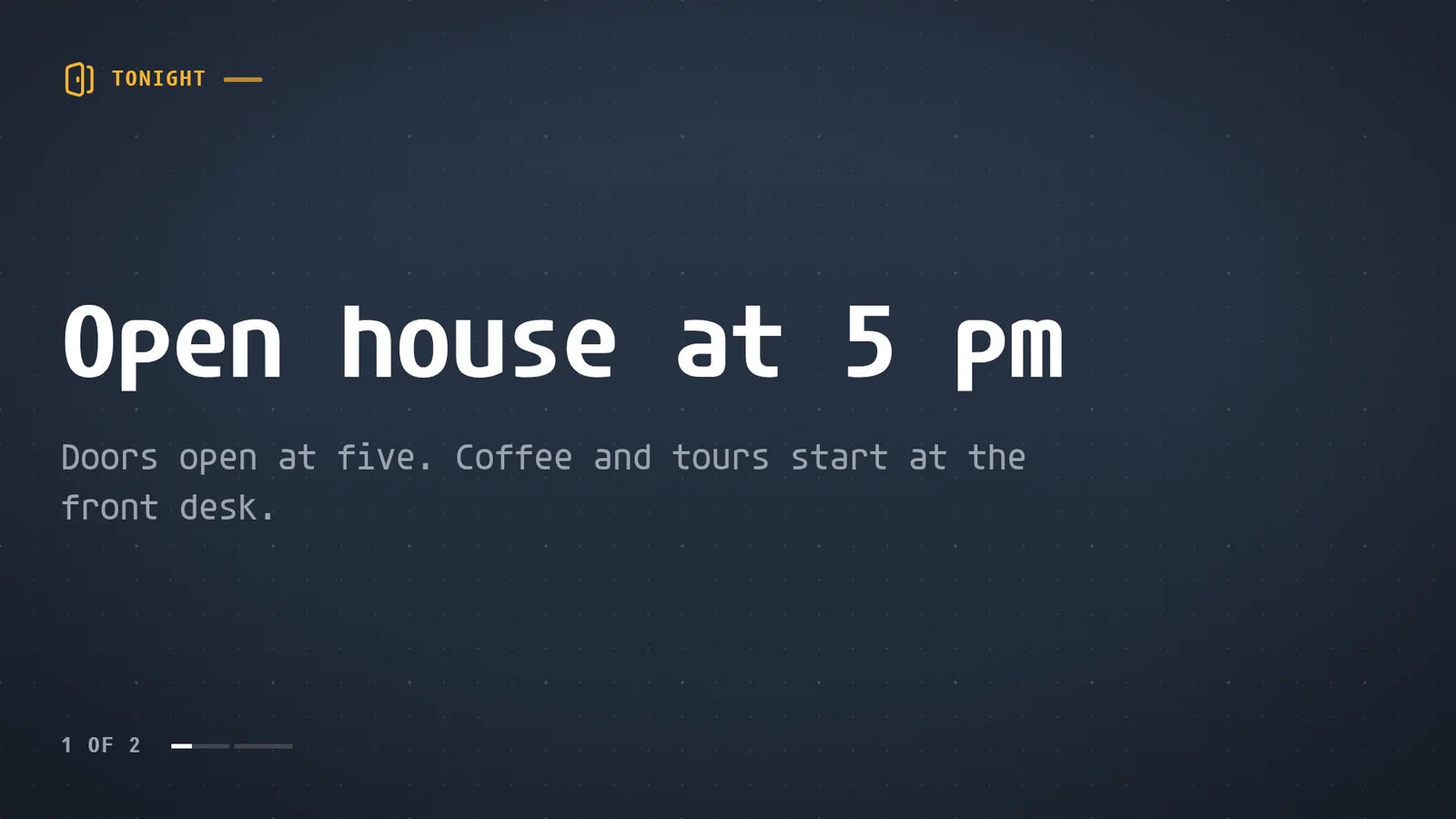
Put up a board with two messages. Tonight: open house at 5 pm, doors open at five, coffee and tours start at the front desk. This week: free Wi-Fi in the lounge, ask at the front desk for the network name.
- Agent
Done. Devices TV is showing the board, the open house first and the Wi-Fi message after it. It was on the screen about two seconds after I published it, and I checked a screenshot.
What can the agent put on a TV?
| Content | What the agent does |
|---|---|
| A poster, menu or welcome board | Designs it for the screen's size and purpose, or fills one of the 200+ ready-made apps with your facts |
| Your photos and video | Converts and uploads them. Video downloads first and plays from the device's own storage, so it does not buffer |
| A sheet, calendar or dashboard | Reads it with its own access and puts the rows on the screen. See a Google Sheet on a TV and a dashboard on a TV |
| A website | Keeps the page open on the screen. See a website on a TV 24/7 |
| A live camera or stream | Plays HLS streams on every Player and live IP cameras on Android and the Amazon Signage Stick |
| A touch kiosk | Writes a small app and puts it on the screen. See kiosk software |
What else can the agent do once the first screen works?
- Schedule it. Breakfast in the morning and a closing notice after nine, each in the screen's own time.
- Take over many screens at once. Tag the screens, then one request puts a fire-drill notice on every screen with the tag for 30 minutes. Each screen then returns to its schedule on its own.
- Check the glass. It asks a screen for a screenshot, or every tagged screen for one, and looks before it reports.
- Notice a screen that drops. A screen counts as offline after 60 seconds, and an event can wake your agent to check it.
- Keep content current. Ask for a routine and the agent changes the screen when the data behind it changes. An agent that stays on, such as a ChatGPT dot, keeps doing it without your computer.
- Wait for your approval. Turn on Require review for agent changes, or sign the agent in with Propose access. It still prepares everything, and nothing reaches a screen until a person approves.
AI digital signage lists ten example requests to try, and Start has the install sentence for your agent.
What we timed on real runs
Each row is quoted from the page that holds the whole run. The content is demo content, and the runs used a test screen: the Player in a browser window standing in for the TV.
| What the agent did | What we saw | The whole run |
|---|---|---|
| Published a two-message board | On the screen about two seconds after publishing, with a screenshot checked | The session above |
| Made an account and paired a TV, then built an Open sign | Building the sign and seeing it play took about five seconds | Free digital signage |
| Sent a changed row from a sheet | The TV showed it a little over two seconds later | A Google Sheet on a TV |
| Took over hallway screens with a drill notice | On the screen two seconds after the word, and the all-clear four seconds after the word that ended the drill | Schools |
What limits should I know about?
- The Player has to be running on the device that drives the screen. Your agent publishes from wherever it runs, and the screen plays it.
- The agent has to run commands. If your assistant is only a chat window with no shell, ask it what capability is missing, or use one from the list above.
- Apple TV plays images, video, streams and ready-made apps. Web pages and your own apps need another Player. Players has the full table.
- Your agent's login and your screenRIG project are separate. The agent never needs your screenRIG password.
- Some sites refuse to be shown on a screen. Your agent checks before it puts a website up, because a screenshot cannot show that.
Not a chat assistant?
A script, a CI job or your own service can do the same thing without a chat. It calls the same operations through the API, the command-line tool or the browser SDK. Publish content to a TV programmatically shows the conversation and the script, and Developers lists every way in.
Questions
Can ChatGPT, Claude or Gemini control a TV?
Yes, each of them through an agent that can run the official plugin. ChatGPT does it through ChatGPT dots or Codex, Claude through Claude Code, and Gemini through Spark. Grok works through Grok Bot or Grok Build.
Do I need a special TV?
No. Any screen that can run a Player works, and the Downloads page lists the Player for each device. A TV with Google TV or Android TV built in installs it from Google Play, and any TV with a modern browser opens the web Player.
Does my agent need my passwords?
No. It signs in to screenRIG with its own credentials. When it reads a sheet or a calendar it uses the access you gave it, and only what is on the screen goes to the TV.
Can I approve changes before they reach the screen?
Yes. With review on, the agent prepares each change and gives you a link, and nothing plays until you approve it in the dashboard.
How do I know the content is playing?
Publishing waits for the Player to report the new playlist, up to two minutes, and says whether it is playing. Your agent can also ask the screen for a screenshot and look at it. A person can still check the glass.
Can the agent run more than one screen?
Yes. Tag the screens and one request changes, schedules or takes over every screen with the tag, and the answer reports each screen's own result.
What does it cost?
screenRIG is free, with unlimited screens. Paid plans add business tools, more people, people to talk to, governance and contract terms. See pricing.
Related
More guides
screenRIG is free.
Install the official plugin, pair a screen and your agent publishes to it.