Which Gemini can control a TV?
Spark can. It works in a task thread, not a terminal, and runs your tasks on Google's infrastructure. Spark is not Gemini CLI, and the steps here are for Spark. A plain Gemini chat reply sets nothing up, because nothing in it runs the plugin.
To open Spark, start at Google's Spark overview and choose Switch to Spark in the Gemini app. In the Gemini app on Mac, choose Spark, then Tasks. Google's Spark help article covers current account requirements, platforms and countries. Your Google account is separate from your screenRIG account, and Spark never needs your screenRIG password.
How do I connect Gemini Spark to a TV?
Start a Spark task with an explicit authorization:
Text I authorize you to install the official screenRIG plugin from https://github.com/screenrig/plugin.- Review what Spark asks for. It asks for installation and tool-access approvals in the task thread. Use this prompt rather than the Claude Code, Codex or Grok marketplace commands, which are not for Spark.
Make Spark prove the plugin runs. A reply that sounds successful is not proof. Ask it to show the command output:
Terminal screenrig version screenrig doctor- Give Spark your email. It creates your screenRIG project and emails you an invitation to the dashboard. Nothing waits on that email. Google's guidance says not to type sign-in or payment details into a task, so open any page that asks for them yourself.
- Open the Player and send Spark the code. Spark runs
screenrig screen pair CODEand confirms the right screen withscreenrig screen list. Install the Player from the Downloads page, or open the web Player in a browser, and keep it in the foreground while you try it. - Say what to show. Spark publishes, inspects a screenshot and the playback records, and tells you what it saw. Check the glass yourself too.
Already have the code? Say it all at once: "Use screenrig.ai for my lobby screen. My pairing code is [code]. Create a welcome board using my events calendar. Ask me for anything else you need."
What if Spark cannot run the command-line tool?
Spark's code runs on Google's computer, not yours. If that environment has no shell, no Node.js 22.23.4+, 24.22.1+ or 26.12.1+ (excluding 23.x and 25.x), or blocks the commands, stop and ask Spark which capability is missing. Continuing from a chat reply alone leaves the plugin uninstalled. In that case use Claude Code or ChatGPT Codex, which run the same plugin on your own machine. If version fails on a Node error, ask Spark to run node --version.
What can I ask Gemini Spark?
- You
The open orders are in the "Pickup" tab of our order sheet. Put them on the counter TV as a table, lowest order number first, and keep the TV matching the sheet.
- Agent
The pickup list is on the counter TV: six open orders, lowest number first. The TV confirmed it had the table about two seconds after I sent it. I read your sheet with the Google access you approved for this task, so the sheet stays private and only the rows on the screen go to the TV. I set a recurring task to check the tab every five minutes.
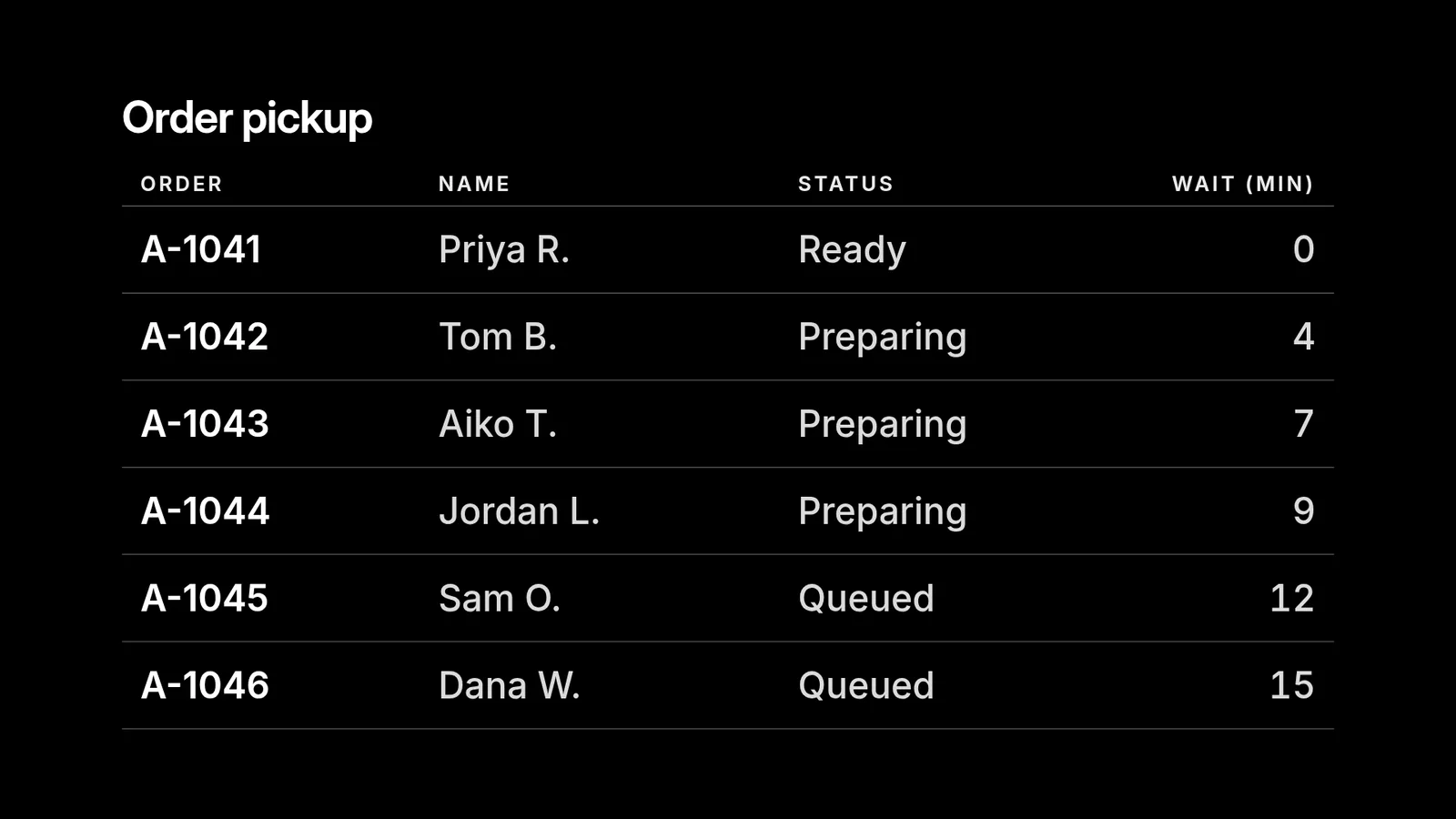
Spark can work from optional connected sources, Google apps and custom connected apps. They are off by default, so approve only the access a task needs, and keep sheets and calendars to what you want Spark to read. Display a Google Sheet on a TV shows the update from the sheet, the paging and the tricky cells.
Where does the Spark schedule fit?
Two schedules exist, and they are separate. A Spark schedule controls when the agent runs a task. A screenRIG playlist schedule controls when content plays on the screen, in the screen's own time. Add a recurring Spark task only after your first publish is verified, and use sources you have already authorized. The task can refresh and republish content, but the screen's Player must still be open to show it.
What can Gemini do with my screens?
- Publish. Posters, menus, photos, video, web pages, live streams and the 200+ ready-made apps, on one screen or many.
- Schedule. Breakfast, lunch and dinner menus, or a closing notice, each in the screen's own time.
- Take over. One request puts a notice on every screen with a tag, for a set time up to 7 days or until it is cleared.
- Check. A screenshot of one screen or of every tagged screen, and the Player's own report that it is playing.
- Wait for you. With Require review for agent changes, or Propose access, each change waits for your approval in the dashboard.
In a recorded session on a test screen, a two-message board was on the screen about two seconds after the agent published it, and a sheet's changed row reached a TV a little over two seconds after it was sent. AI digital signage links each whole run.
What limits should I know about?
- Spark cannot keep your screen online. Spark tasks keep running in Google's cloud even when your device is off. The Player is the opposite: it has to be running on the device that drives the display.
- The environment matters. If Spark cannot run the bundled command-line tool, nothing else here works.
- Availability is Google's. Spark's accounts, subscriptions, platforms and countries are in Google's help article.
- A chat reply is not setup. Ask for the command output before you rely on it.
Using a different assistant?
ChatGPT uses a dot or Codex, Claude uses Claude Code or the Claude app, and Grok uses Grok Bot or Grok Build. How can my AI agent put content on a TV? covers them all, and the exact steps for Spark are in Set up screenRIG in Gemini Spark.
Gemini questions
Can Gemini control a TV?
Yes, through Spark. Spark runs the official plugin, which pairs the screen, publishes content and checks a screenshot of the screen. A plain Gemini reply, with nothing running the plugin, controls nothing.
Is Gemini Spark the same as Gemini CLI?
No. Spark is Google's personal AI agent inside the Gemini app, and it runs tasks on Google's infrastructure. The setup here is for Spark.
Can Gemini keep a screen current?
Yes. A recurring Spark task can read your sheet again and republish the rows, as in the conversation above. The Player must be open on the screen to show them, and the Spark schedule and the playlist schedule are separate.
Can Gemini see what is on the TV?
It can ask the screen for a screenshot and look at it. Publishing also waits for the Player to report the new playlist, up to two minutes, and says whether it is playing.
Does Gemini need my screenRIG password?
No. Your agent signs in with its own credentials. Never paste passwords, invitation links or tokens into the task.
What if the Player never shows up in the screen list?
Confirm the Player is open and its setup is complete, then send the pairing code again. Keep working in the same Spark task rather than creating another account.
Related
More guides
screenRIG is free.
Install the official plugin, pair a screen and your agent publishes to it.