Which Grok can control a TV?
| Grok | What it is | How you install screenRIG | Setup guide |
|---|---|---|---|
| Grok Bot | Your bot in the Grok Bot app, from the App Store on iOS or Google Play on Android | Send one message in the conversation. No terminal | Grok Bot setup |
| Grok Build | xAI's terminal agent | Two commands in your terminal | Install commands on Start |
Use the Grok Bot app for the phone path. The Grok Build commands are a separate installation, so do not paste them into your phone as if they were app setup steps. See Grok Bot for current availability. Your Grok Bot login is separate from your screenRIG account, and your bot never needs your screenRIG password.
How do I connect Grok Bot to a TV?
Send your bot this message:
Text Install screenrig.ai using the official plugin at https://github.com/screenrig/plugin and help me set up my first screen.- Review any installation or tool-access approval, then ask the bot to confirm the plugin is installed and ready. If the bot cannot install or run the plugin, a chat response alone does not mean setup is complete. Ask what access or capability is missing.
- Give it your email. It creates your screenRIG project and emails you an invitation to the dashboard. Nothing waits on that email, so your bot goes straight on to pairing.
- Open the Player on the TV and read the code to your bot. Install the Player from the Downloads page, or open the web Player on any screen with a modern browser, and keep it in the foreground while you try it.
- Say what to show. Your bot publishes, asks the screen for a screenshot and tells you what it saw. Check the glass yourself too.
Already have the code? Say it all at once: "Use screenrig.ai for my lobby screen. My pairing code is [code]. Create a welcome board using my events calendar. Ask me for anything else you need."
How do I connect Grok Build to a TV?
Run these in your terminal, not on your phone, then start Grok Build:
grok plugin marketplace add https://github.com/screenrig/plugin.git
grok plugin install screenrig --trust
--trust is required on Grok Build. The plugin's command-line tool needs Node.js 22.23.4+, 24.22.1+ or 26.12.1+. The rest is the same as for the bot: your email, the Player's code, then what to show.
Grok on the web can also connect to your project as a connector that a person approves. Developers explains that route and the access levels next to the API and the command line.
What can I ask Grok Bot?
Here is a first run from a recorded session on a test screen, with no screenRIG account before it. The shop and its hours are made up.
- You
Set me up with screenRIG for Linden Corner Market and put our opening hours on the shop TV. The code on the TV is ABC 234. We're open 7 to 10 Monday to Saturday, 8 to 8 on Sunday, and closed on Thanksgiving.
- Agent
Done. I made your account, paired the TV and put up a green Open sign with your hours, Thanksgiving marked closed. I checked the screen, and nothing else is on it. Building the sign and seeing it play took about five seconds.
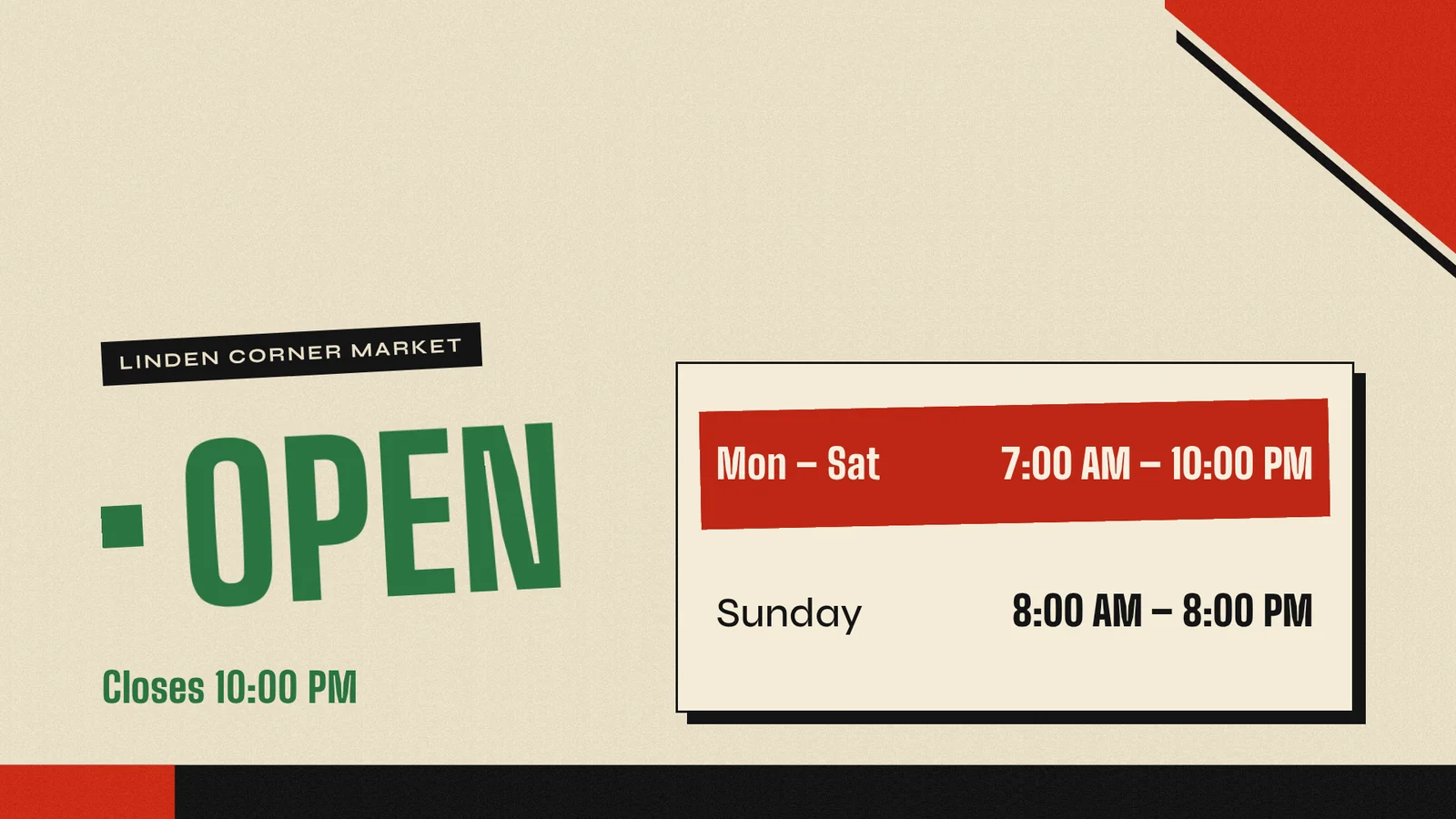
Once the screen works, the same conversation keeps going. Ask the bot to change a price, add a closing notice or put the same board on a second TV, and it does it in the same project.
What can Grok do with my screens?
- Publish. Posters, menus, photos, video, web pages, live streams and the 200+ ready-made apps, on one screen or many.
- Schedule. Breakfast, lunch and dinner menus, or a closing notice, each in the screen's own time.
- Take over. One request puts a notice on every screen with a tag, for a set time up to 7 days or until it is cleared.
- Check. A screenshot of one screen or of every tagged screen, and the Player's own report that it is playing.
- Wait for you. With Require review for agent changes, or Propose access, each change waits for your approval in the dashboard.
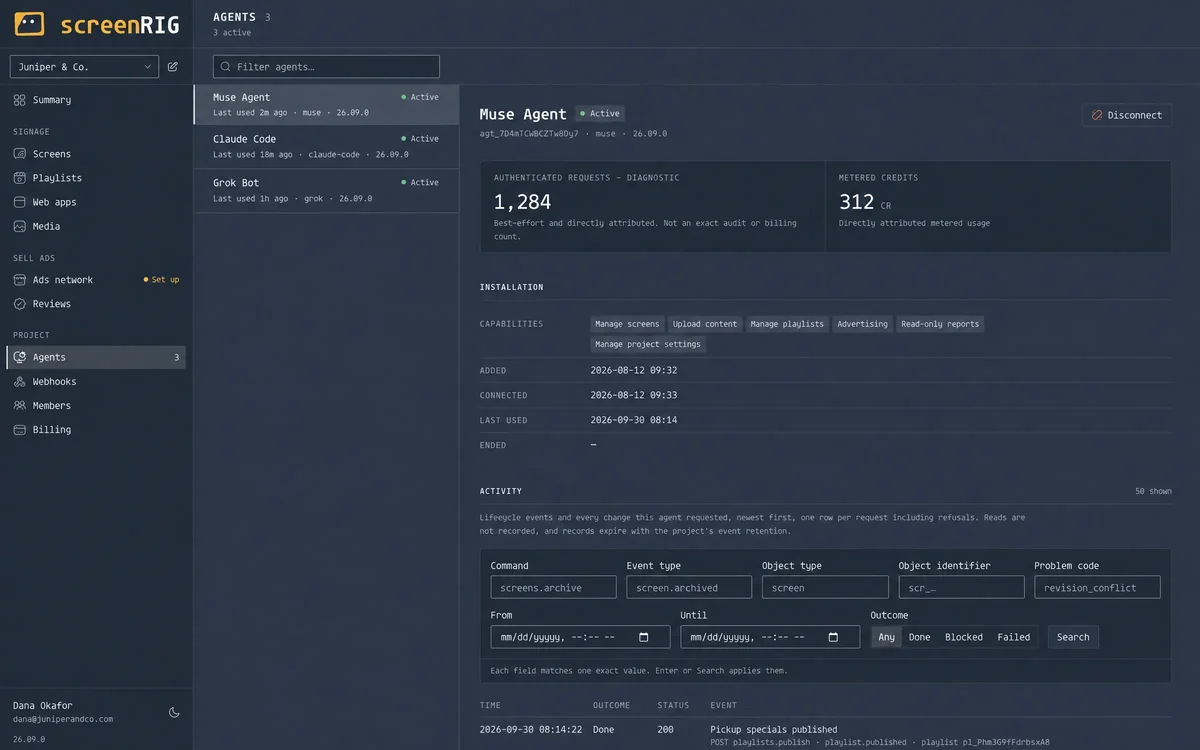
Every agent has its own record in the dashboard.
What limits should I know about?
- The Player must be open on the device that drives the screen. Your bot publishes whenever you ask, and the screen plays it only while the Player runs.
- A chat reply alone does not install the plugin. If the bot cannot run it, use Grok Build, Claude Code or Codex, which run the same plugin on your own machine.
- Availability is xAI's. Grok Bot lists current availability and other ways to reach it.
- Review is yours to turn on. Each change waits for your approval when review is on.
Grok questions
Can Grok control a TV?
Yes. Grok Bot and Grok Build run the official plugin, which pairs the screen, publishes content and checks a screenshot of the screen.
Do I need a computer for Grok Bot?
No. You can set it up and run it from the Grok Bot app on your phone. The TV or stick needs the Player installed, or any screen can open the web Player in a browser.
What is the difference between Grok Bot and Grok Build?
Grok Bot is the app on your phone, and you set it up by message. Grok Build is xAI's terminal agent, and you set it up with two commands. They install the same plugin and publish the same way.
Can Grok see what is on the TV?
It can ask the screen for a screenshot and look at it. Publishing also waits for the Player to report the new playlist, up to two minutes, and says whether it is playing.
Can Grok run several screens?
Yes. Tag the screens, and one request changes, schedules or takes over every screen with the tag. The answer reports each screen's own result.
Does Grok need my screenRIG password?
No. Your bot signs in with its own credentials. Never paste passwords, invitation links or tokens into the conversation.
Related
More guides
screenRIG is free.
Install the official plugin, pair a screen and your agent publishes to it.