Three ways an agent runs a screen
- Fugo Screen Agents: an agent inside the signage product. Fugo's Screen Agents page is headed "Autonomous agents that manage your screens (and more)". You set an agent up once, in a chat inside Fugo. You give it sources, which are read-only tools such as Slack, Notion and Google Calendar, plus curation rules, which say what to show. On each scheduled pass, which Fugo calls a tick, the agent re-reads its sources and updates its one AI-curated playlist. It fires a trigger when something should interrupt.
- The Yodeck AI Agent: your chat app drives Yodeck. Yodeck's AI Agent page is headed "Run your screens from one sentence". You connect Yodeck to Claude, ChatGPT, Cursor or VS Code, and the agent carries out what you ask within your Yodeck permissions. Yodeck's own guide calls it "an executor of your instructions" and says it is not "an autonomous system that decides what to publish or when".
- screenRIG: your agent runs the whole job. The agent you already use, such as Claude Code, ChatGPT Codex or ChatGPT dots, installs the official screenRIG plugin. It pairs each screen from the code the screen shows, builds the content, publishes it, and confirms that the Player is playing it. The agent's own connections, such as docs, spreadsheets, email and calendar, are the sources. screenRIG holds no integration with those tools.
Side by side
| Topic | Fugo Screen Agents | Yodeck AI Agent | screenRIG |
|---|---|---|---|
| Where the agent lives | Inside Fugo, set up from a chat in Fugo | Your AI tool, connected to Yodeck | Your own agent, with the screenRIG plugin |
| When it acts | On a schedule you set, plus triggers for moments that interrupt | When you send it a request | When you ask, and on its own schedule or when data changes, with an agent that stays on, such as ChatGPT dots |
| What it reads | Read-only sources. Slack, Notion and Google Calendar are on the page, and its FAQ says Linear, GitHub and HubSpot are in flight | Your Yodeck account | Whatever your agent is already connected to |
| Setting up a screen | You put the agent on screens already in your Fugo account | Pairing a screen is not among the tasks the AI Agent page lists | Your agent pairs the screen from the code it shows |
| What it puts on screen | One AI-curated playlist, built from your account's media, dashboards and Design Studio work | Content, playlists, schedules and takeovers in your account | Media, more than 200 ready-made apps, web pages and kiosk apps your agent builds |
| Interrupting the loop | Triggers take the screen, then the loop resumes | Emergency takeover from one message | A takeover for a set time, up to 7 days, after which the screen returns to its schedule on its own |
| Checking the screen | A timeline of what is being shown | The last stored display image. Yodeck says a person reviews the images | The Player confirms playback, and a screenshot helps inspect the screen |
| Deleting | Pause the agent, or publish over it | Delete operations are disabled, and removal happens in the Yodeck portal | Your agent can remove what it made, within the access level you give it |
| Plans | The Screen Agents page does not name plans. Fugo's plans are $20 to $40 per screen a month, billed annually | Premium ($12) and Enterprise ($16) per screen a month, billed annually | Every plan. Standard includes unlimited screens |
How we checked. Fugo and Yodeck facts come from the pages under Sources, read on 4 Nov 2026, in US dollars. Fugo and Yodeck are trademarks of their owners, and screenRIG is not affiliated with either. If something has moved, tell us.
A standing job, on screenRIG
Fugo's Screen Agents are built for a job that never ends, such as keeping an office board current from the team's tools. On screenRIG, the same job goes to an agent that stays on. ChatGPT dots keep working between conversations, so a dot can own a screen. Set up ChatGPT dots shows how to connect one. For example:
- You
Keep the office lobby screen current. Show today's meetings from my calendar, put the launch checklist up when it changes, and when the build breaks, take over the engineering screen until it's fixed.
- Agent
Set up. The lobby screen shows today's meetings and the launch checklist, and I'll refresh them when either changes. If the build breaks, the engineering screen switches to the build status and goes back to its schedule once the build passes. Both screens are playing now, and I checked them.
Live data does not need the agent at all. Apps that pull weather, feeds and other live data refresh on the screen by themselves, so the agent only has to set them up once.
What is agentic digital signage?
Agentic digital signage is signage that an AI agent operates from start to finish: it pairs the screen, builds the content, publishes and schedules it, checks the result on the glass and reacts when something changes. The three products above sit at different points on that line. Fugo's agents keep one curated playlist current on a schedule inside Fugo. The Yodeck AI Agent carries out the request you send it. On screenRIG the agent you already use does every step, including the ones before there is a screen. AI digital signage lists ten requests to try and the loop the agent runs.
Which assistants run screenRIG?
Every path installs the same official plugin, so the choice is where you want your agent to live. Each assistant has a guide with its own install steps and limits.
| Assistant | How it runs screenRIG | Guide |
|---|---|---|
| ChatGPT | A ChatGPT dot in ChatGPT, or Codex in your terminal | Control a TV with ChatGPT |
| Claude | Claude Code in your terminal, or the Claude app as a connector you approve | Control a TV with Claude |
| Gemini | Spark, Google's task agent in the Gemini app | Control a TV with Gemini |
| Grok | Grok Bot on your phone, or Grok Build in your terminal | Control a TV with Grok |
| Meta Muse and Hermes | A chat prompt, in the Muse app or in Hermes | Meta Muse setup, Hermes setup |
How can my AI agent put content on a TV? answers the same question for any agent, step by step.
What does the agent's work look like on a screen?
These rows come from our own recorded runs on test screens in October 2026, with demo content. Each links to the page that holds the whole run.
| What the agent did | What we saw | The whole run |
|---|---|---|
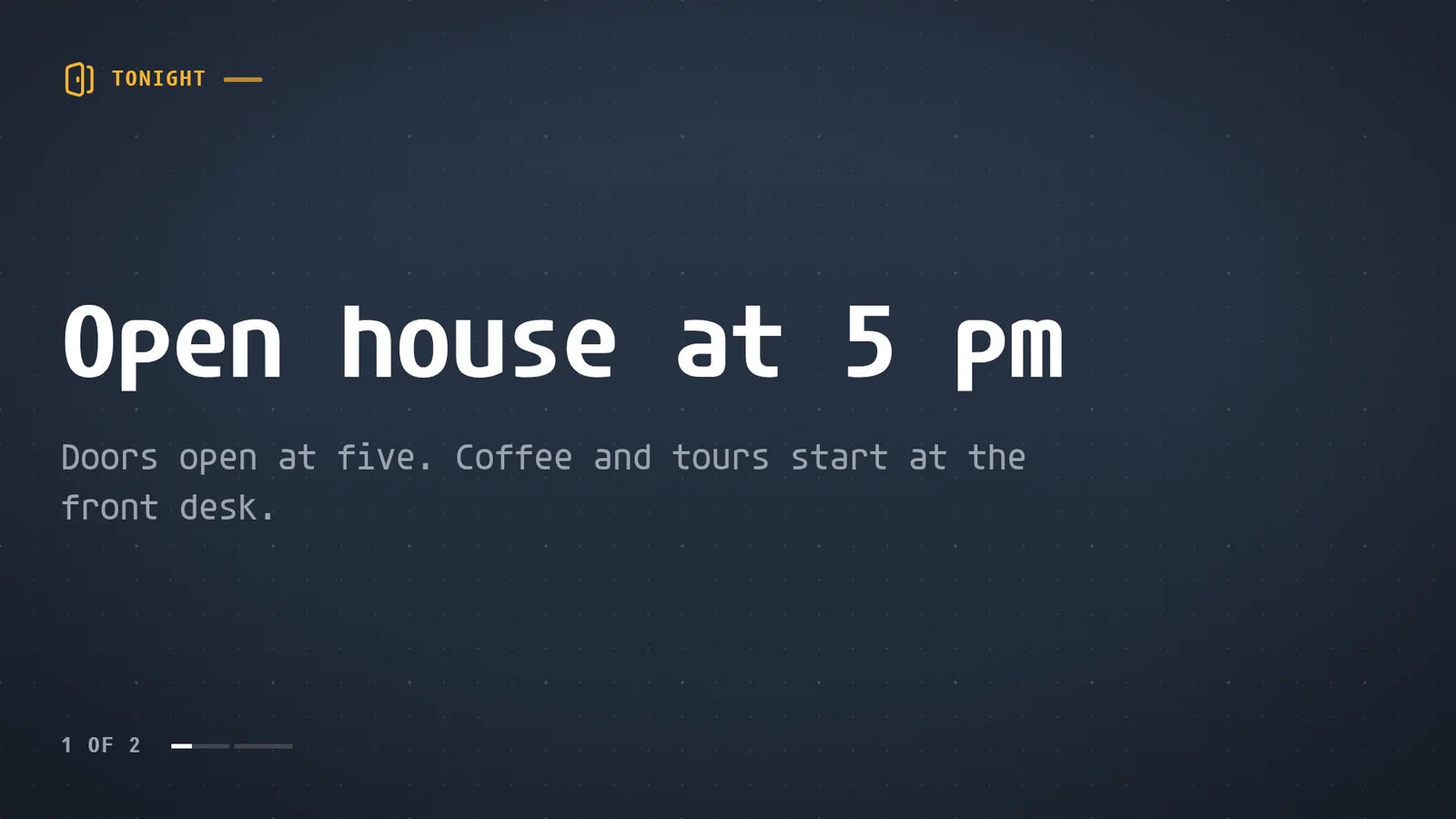
| Paired a screen and published a two-message board | On the screen about two seconds after publishing, with a screenshot checked | Digital signage |
| Paired a second TV by the register and gave both TVs one tag | Both showed the same offer, and the two screenshots matched | Yodeck alternative |
| Sent a changed row from a sheet | The TV showed it a little over two seconds after it was sent | A Google Sheet on a TV |
| Took over hallway screens with a drill notice, then cleared it | The notice was on the screen two seconds after the word, and the all-clear four seconds after the word that ended the drill | Schools |
| Wrote a pipeline step to a board with a script | The Player reported the new revision 1.8 seconds after the write was accepted | Headless digital signage |
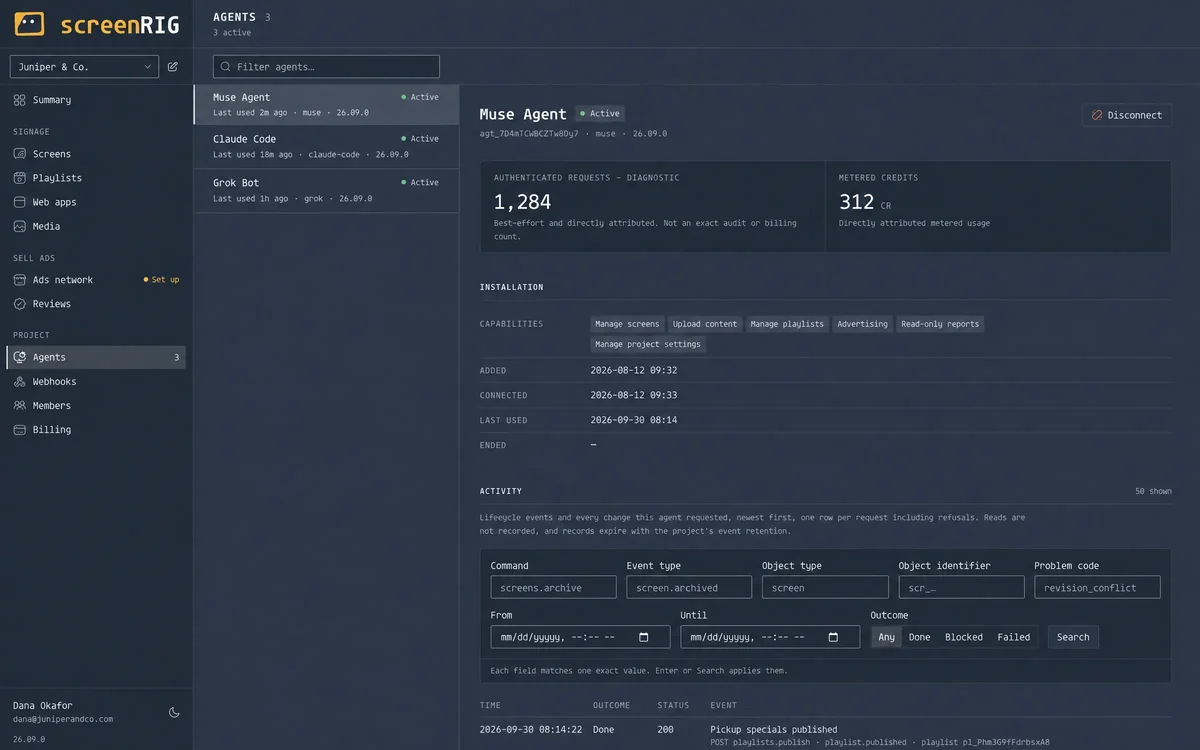
Because the agent works inside your project, the dashboard keeps its record. Each agent lists the capabilities it was given, when it was last used and every change it asked for.
Which one fits?
- Choose Fugo Screen Agents if you want the agent inside your signage product and do not run an agent of your own. Its sources are read-only, and it builds from content you made in Fugo.
- Choose the Yodeck AI Agent if your team is already on Yodeck Premium or Enterprise and wants faster changes from Claude or ChatGPT. Yodeck's guide notes that the AI tool needs its own paid plan.
- Choose screenRIG if you want your own agent to run the whole job, from pairing the screen to checking it, on every plan. Start shows how to connect your agent.
Questions
What is a screen agent?
Fugo uses the name for a worker you set up inside Fugo. It reads the sources you connect, follows the curation rules you save, keeps one playlist current and fires triggers when something matters now (Fugo's FAQ). On screenRIG, the agent is the one you already use, and it acts across the whole job, including pairing screens and checking that they play.
Does the Yodeck AI Agent run on its own?
No. Yodeck's guide describes it as an executor of your instructions, within your permissions, and not an autonomous system that decides what to publish or when. It also cannot delete: removal happens in the Yodeck portal.
Do I need an MCP connector for screenRIG?
No. Your agent installs the official screenRIG plugin, which brings the screenRIG CLI with it. screenRIG also runs a hosted MCP server, so Claude, ChatGPT or Grok can connect as an app that a person approves, and Developers covers that route. Digital signage MCP servers compared sets the signage vendors that connect through an MCP server side by side.
Which AI assistants can run digital signage on screenRIG?
ChatGPT through a dot or Codex, Claude through Claude Code or the Claude app, Gemini through Spark, and Grok through Grok Bot or Grok Build, plus Meta Muse and Hermes. The assistant guides give the install path and the limits for each.
What is agentic digital signage?
Signage that an AI agent operates from start to finish, from pairing a screen to checking what it shows. The section above compares the three approaches, and AI digital signage has the loop.
What does screenRIG cost?
screenRIG is free. Standard includes unlimited screens, and your agent works on every plan. See pricing.
Sources
- www.fugo.ai/features/screen-agents
- www.fugo.ai/features/claude-digital-signage
- www.fugo.ai/pricing
- www.yodeck.com/ai-agent
- www.yodeck.com/use-cases/ai-digital-signage-yodeck-ai-agent
- www.yodeck.com/docs/user-manual/yodeck-mcp-installation-guide
- www.yodeck.com/pricing
- screenrig.ai/pricing
- screenrig.ai/docs/start
- screenrig.ai/docs/start/dots
- screenrig.ai/docs/start/claude-code
- screenrig.ai/docs/start/chatgpt
- screenrig.ai/docs/start/gemini-spark
- screenrig.ai/docs/start/grok-bot
- screenrig.ai/docs/mcp
Related
More comparisons
screenRIG is free.
Install the official plugin, pair a screen and your agent publishes to it.