Send a tab in four steps
- Pair the TV once. Put the screenRIG Player on the TV, or open the web Player in its browser, and read the code it shows to your agent. Start walks through it.
- Install the extension from the Chrome Web Store or Firefox Add-ons. Edge, Brave and Arc use the Chrome listing. It signs in with your dashboard session, so there is no token to copy.
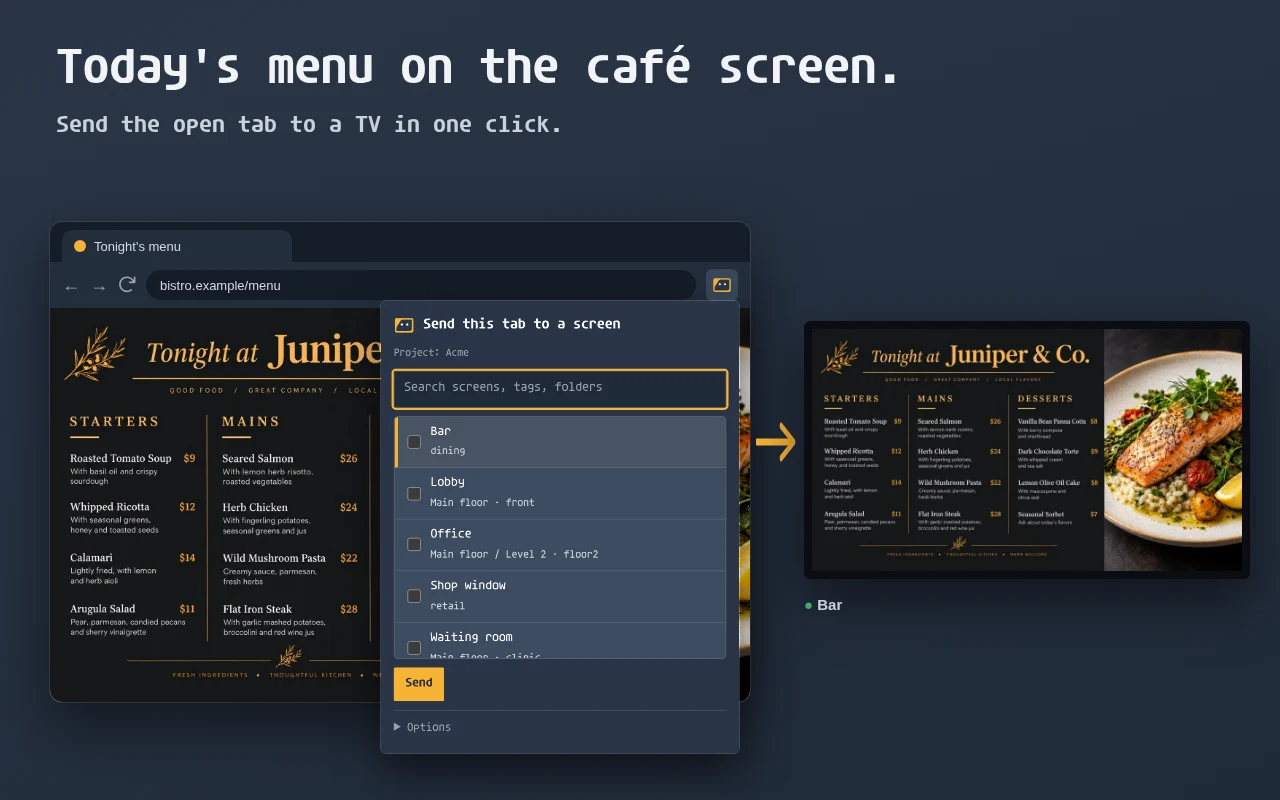
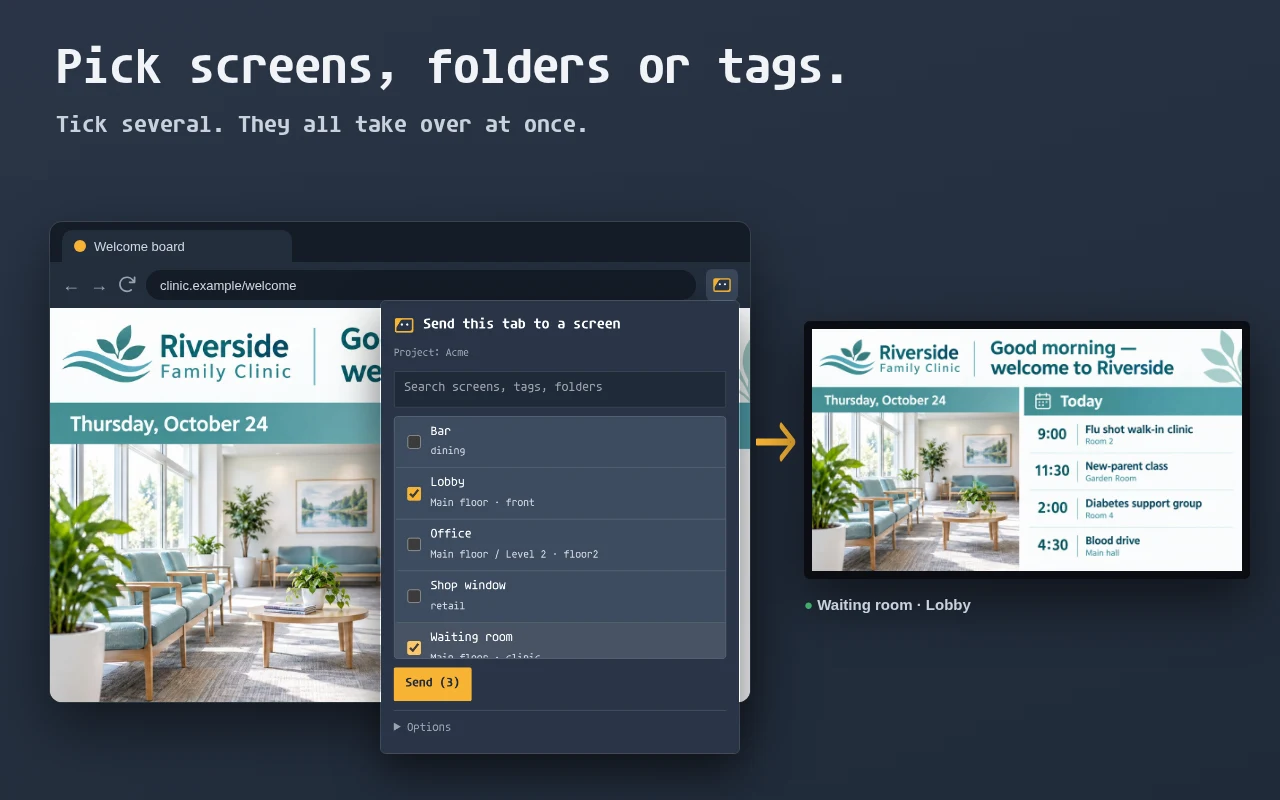
- Open the page and click the icon. The popup lists your online screens, folders and tags. Tick one or several and press Send.
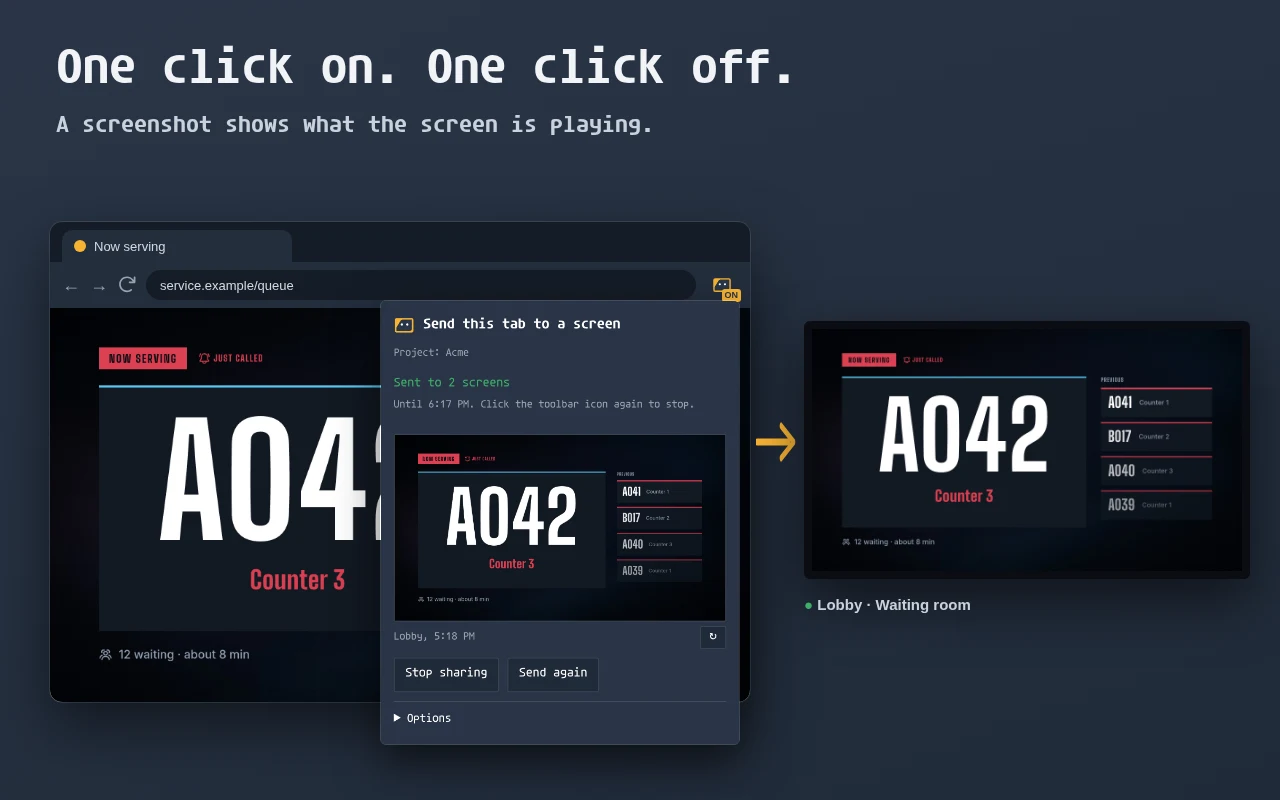
- Click the icon again to stop. The TV goes back to what it was showing. A share also ends on its own after the time you chose, 24 hours at most.
It is not casting
| Casting a tab | Sending a tab with screenRIG | |
|---|---|---|
| What the TV shows | A stream of your computer's tab | The page itself, loaded by the TV |
| Your computer | Has to keep running | Can close the tab or sleep |
| Screens | One device at a time | One screen, several, a folder or a tag |
| After you stop | The cast ends | The screen returns to its schedule or playlist |
Pick one screen, many or a whole folder
Tick any mix of screens, folders and tags. A folder takes in the folders inside it, and a tag takes in every screen that carries it. Screens that are offline show the page when they come back. The popup lists any screen it skipped, with the reason.
Rotate several tabs and keep a dashboard fresh
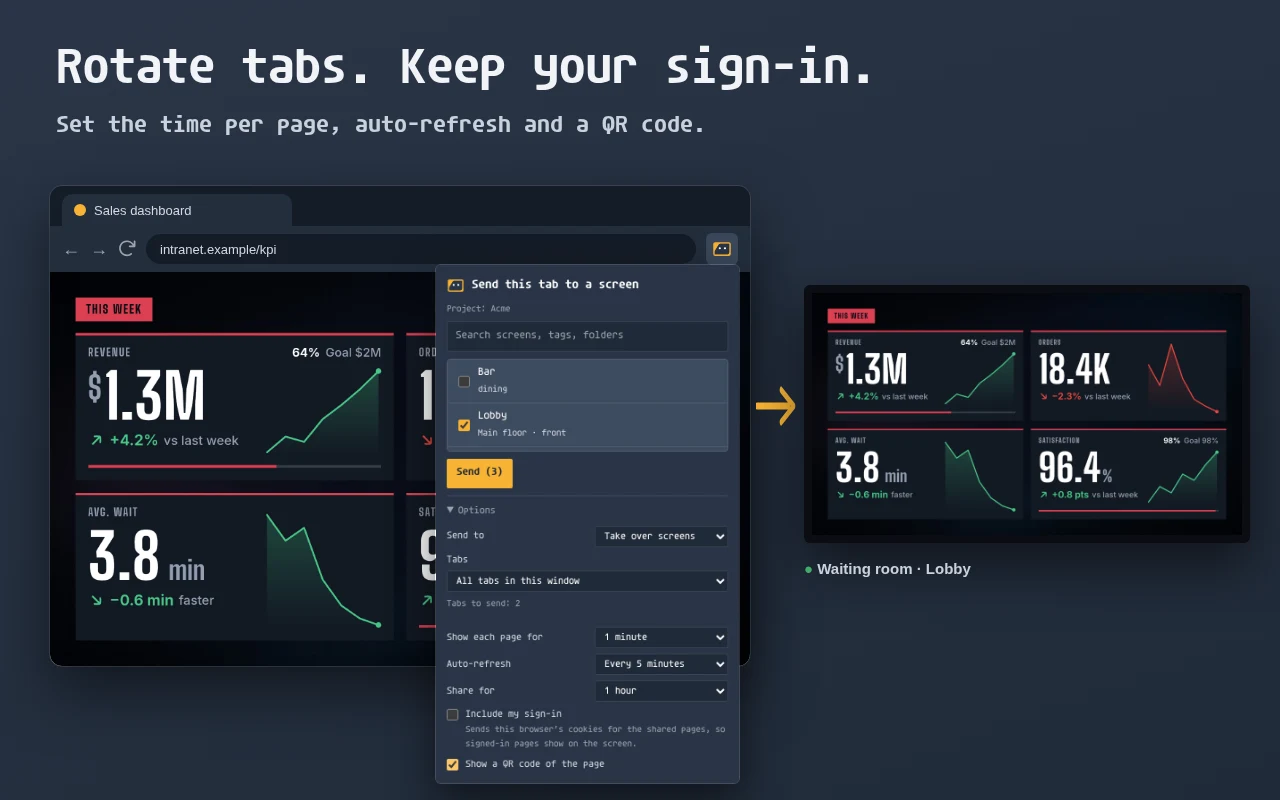
Open Options to send this tab, the tabs you selected or every tab in the window, up to 20 pages. The screen shows each page for 10 seconds to 5 minutes and starts again. Auto-refresh reloads the pages every minute to every hour, a QR code lets people open the page on their phone, and the share runs for 1 hour, until the end of the day or 24 hours.
Show a page you are signed in to
Turn on Include my sign-in and the extension sends your browser's cookies for the pages you share, after you allow each site. A dashboard you are signed in to shows signed in on the screen. The cookies stay with the share and are removed when it ends. A site can end a session used from another device, and then the screen shows its sign-in page.
See what the screen shows
After you send, the popup shows a screenshot of the first screen with a refresh button. It also warns when a page refuses to be embedded, before you rely on it.
What people put on a screen
- Tonight's menu on the bar TV.
- The weekend sale page on the shop-window screen.
- A KPI dashboard on the office wall, refreshed every few minutes.
- A welcome page with a QR code in the lobby.
- The wait-time board in a clinic.
- A few status pages in turn on the operations screen.
What to know
| Player | A page that refuses to be embedded | Include my sign-in |
|---|---|---|
| Android TV and Google TV, Amazon Signage Stick, Linux, Raspberry Pi, Windows | Shows the page | The page shows signed in |
| Web Player, Mac, Samsung Tizen, LG webOS, BrightSign | A blocked icon | The page shows signed out |
| Apple TV | Takes no web pages | Takes no web pages |
- The TV loads the address itself, so it shows public pages and pages its network can reach.
- Project owners and members who can approve changes can send. Screens in a protected folder cannot be sent to.
- Sending again replaces the share before it.
Prefer to ask your agent? It can put an address on a screen too, as in Display a website on a TV 24/7. screenRIG is free. Pay only if you want more.
Next: the extension reference lists every option, permission and answer.
Related
screenRIG is free. Pay only if you want more.
Install the official plugin, pair a screen and your agent publishes to it.