Ask for the board, and a preview first
The TV shows a pairing code. You read it to your agent, and from then on you talk to the TV through your agent. Start installs the plugin. screenRIG is free. Pay only if you want more.
- You
Put a welcome board on the reception TV for Cedar & Pine Architects. Show today's three guests with their times and who they're meeting, and a note to sign in at reception. Show me a preview before it goes on the TV.
- Agent
Here's the preview. It has all three guests with their times and who they're meeting, and the sign-in note at the bottom. Nothing is on the TV yet.
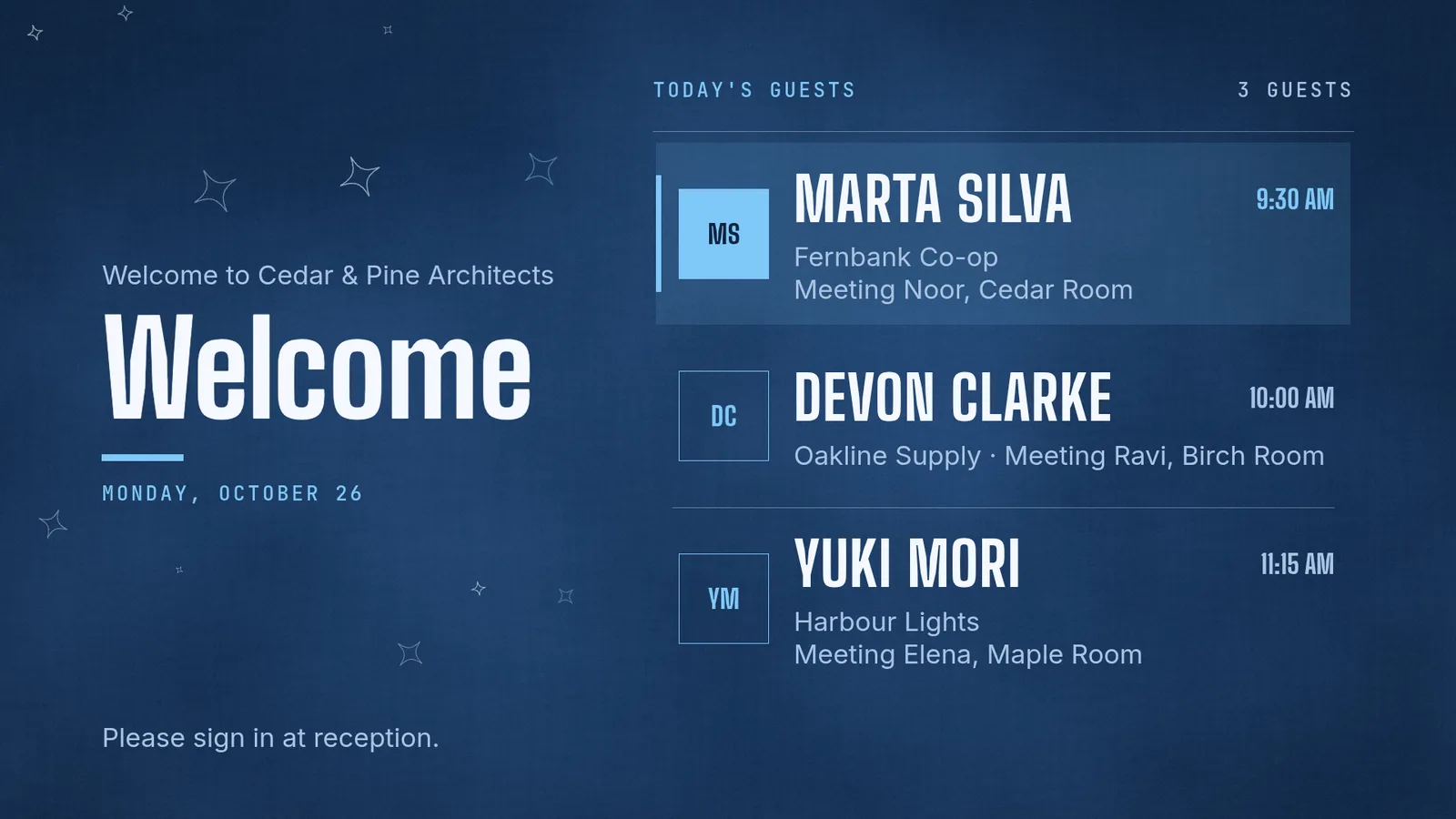
The preview is drawn on your agent's computer, so changing it costs nothing. Read it the way a visitor would: can you find the next guest, does every name fit, does the note read? Ask for new words or another look until it is right.
Say publish, and ask for proof
- You
Publish that to the reception TV. Don't tell me it's up until you've seen it on the screen.
- Agent
It's live. The TV confirmed it had the board about two seconds after I sent it. Then I took a picture of the screen and checked it against the preview: same guests, same times, same note.
Two checks happened here. The preview checks the design. The picture of the screen checks what the TV really shows. That is why your agent waits until it has looked at the second one before it says the board is up. You can ask for that picture any time.
Change one thing
- You
Devon's meeting has moved to 10:30 in the Cedar Room. Change only that, leave everything else as it is, and tell me when the screen has it.
- Agent
Done. Devon Clarke now shows 10:30 AM in the Cedar Room, and the screen had it two seconds after I made the change. The other guests, the heading and the sign-in note are untouched.
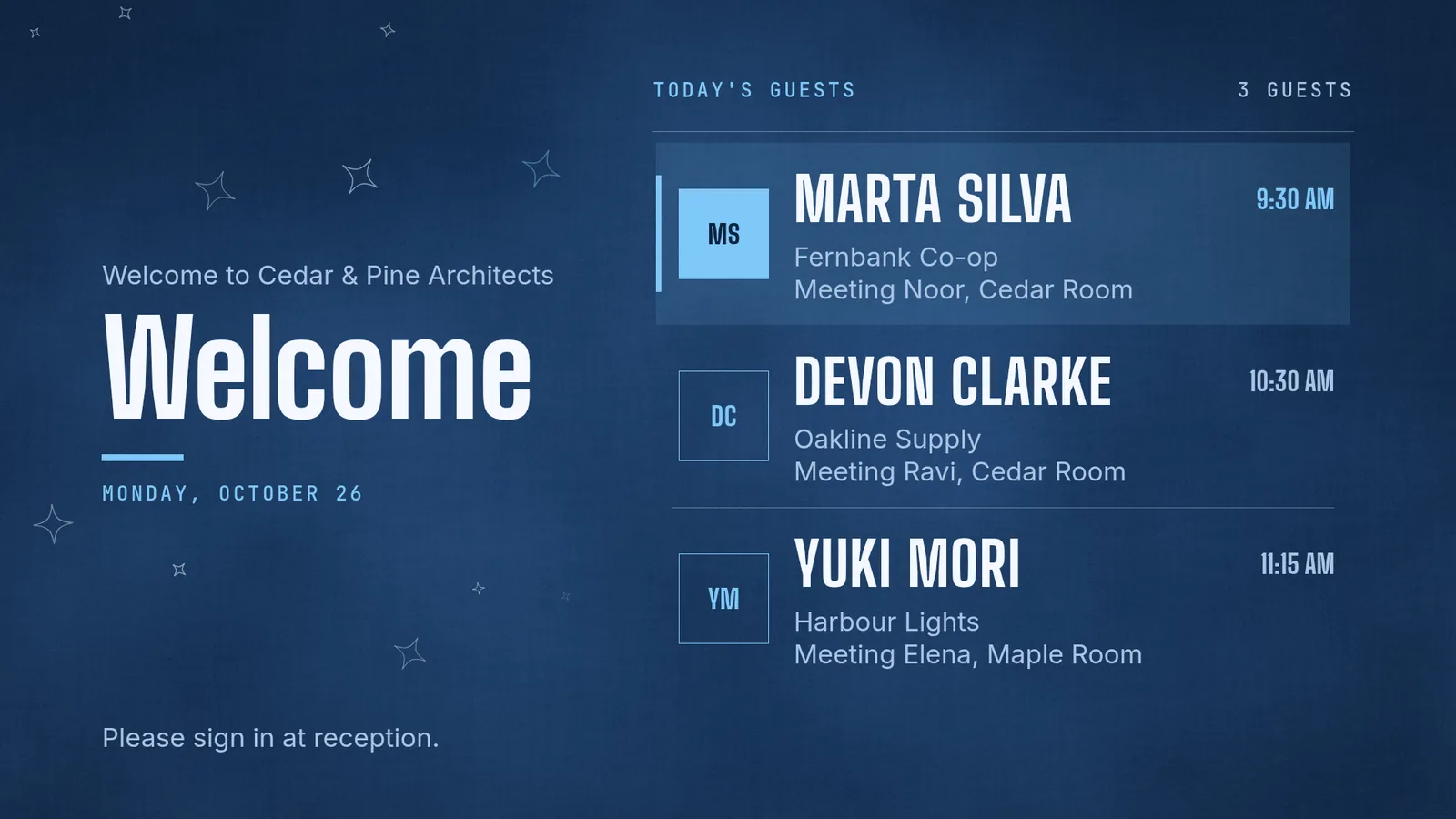
The board was not rebuilt. The guest list is kept apart from the look, so your agent changes one line and the screen follows. A menu, a queue or a schedule works the same way.
What your agent does on its own, and what it asks you
- It asks before it guesses. On a first run it asks for your email and nothing else.
- It says when a change is waiting. If your project needs someone to approve changes, your agent tells you the change is waiting and does not say it is playing. Agents never approve their own changes.
- It checks with you before touching a group. Restarting a group of screens needs your yes.
- It tidies up. It removes its drafts and test uploads, and tells you what it made and what it removed.
Next: keep a board matching a spreadsheet with Display a Google Sheet on a TV.
Related
screenRIG is free. Pay only if you want more.
Install the official plugin, pair a screen and your agent publishes to it.