Category: Health. Tags: Healthcare, Schedules, Queues and waits.
Previews

Views and forms
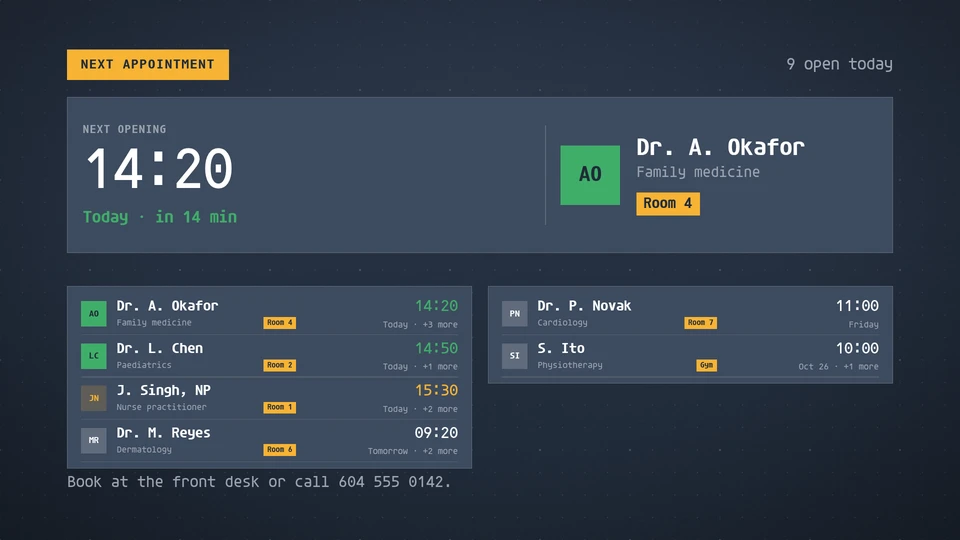
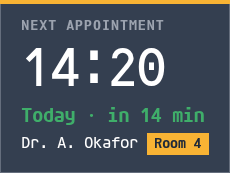
Views: canvas, corner, chip. Canvas forms: landscape, portrait, square, strip.
Card views, themes and publishing. Browse the gallery.
Data and privacy
Feed: screenrig.appointments/v1.
Feed documents carry source attribution. The Player supplies the feed to the card.
Properties
For theme, background, accent and position, see Common properties.
Set static properties in params. Bind data to a project card data key for live values; that document holds only dynamic properties. Without a data key, put the complete configuration in params. Nested rows describe the contents of their parent property.
Static properties
| Name | Type | Default | Values and limits | Description |
|---|---|---|---|---|
title | string | "Next appointment" | maxLength: 40 | |
hour12 | boolean | false | ||
timeZone | string, null | null | IANA zone; null uses the screen's zone. | |
roomLabel | string | "Room" | maxLength: 12 | Put before a short room, so "4" reads "Room 4". |
horizonDays | integer | 14 | minimum: 1; maximum: 60 | Slots further away than this are left out. |
staleMinutes | integer | 30 | minimum: 1; maximum: 1440 | A feed older than this shows how long ago it updated. |
Dynamic properties
| Name | Type | Default | Values and limits | Description |
|---|---|---|---|---|
practitioners | array | [] | minItems: 0; maxItems: 16 | Practitioners and their open slots, the same document as the screenrig.appointments/v1 feed's practitioners. The feed wins when present. |
practitioners[].name | string | minLength: 1; maxLength: 40; Required | ||
practitioners[].specialty | string | "" | maxLength: 40 | |
practitioners[].room | string | "" | maxLength: 14 | 4, B12 or Gym. One to three letters or digits read after the room label. |
practitioners[].slots | array | [] | maxItems: 200 | Open appointment starts, ISO 8601 with an offset (or wall time in the screen's zone). |
footnote | string | "" | maxLength: 120 | A line at the foot: how to book. |
Canvas example
Add this item to a playlist page’s primitives. Publish the playlist and assign a screen.
{
  "id": "next-appointment",
  "primitive": "card",
  "card": "next-appointment",
  "major": 1,
  "params": {
    "theme": "neomustard"
  },
  "rect": {
    "x": 0,
    "y": 0,
    "width": 1920,
    "height": 1080
  },
  "layer": 0,
  "content_fit": "fill",
  "data": "next-appointment-main"
}
Write live data
Create this document before showing the card, then replace it to update the screen without republishing. Use the same project as the playlist. Supply your API authorization through the environment; see API authentication.
curl --request PUT "https://api.screenrig.ai/api/card-data/next-appointment-main" \
  --header "Authorization: Bearer $SCREENRIG_TOKEN" \
  --header "ScreenRig-Project: $SCREENRIG_PROJECT" \
  --header "Content-Type: application/json" \
  --data '{"document":{"practitioners":[],"footnote":""}}'