
Keep content moving.
Update media, playlists, and app releases. Schedule content in the screen’s timezone.
Content & schedules →Free to use within reason until 1 January 2027. Launch terms →
Digital signage & kiosk infrastructure
Your agent creates it.
screenRIG puts it on the screen.
Publish menu boards, videos, dashboards, and kiosk apps through the official screenRIG plugin. Built for AI agents, from the first prompt to the next update.
Start free. No per-screen subscription.

“Create a dinner menu for Harbor & Rye and publish it to the restaurant screen, keep the prices and items updated from my Google sheet.”
Your content. Your agent. Your screens.Agent-operated
Images · video · web · apps
Locally cached media
Usage-based pricing
01 / Set up your agent
Paste this into your agent. Or choose your agent’s tab for the official install commands.
The plugin bundles the skill and CLI. Your agent gets the instructions and tools together.
Requires Node.js 20.11+.
Full setup guide →I authorize you to install the official screenRIG plugin from https://github.com/screenrig/plugin.claude plugin marketplace add https://github.com/screenrig/plugin.git --scope user && claude plugin install screenrig@screenrig --scope usercodex plugin marketplace add https://github.com/screenrig/plugin.git --ref main --json && codex plugin add screenrig@screenrig --jsongrok plugin marketplace add https://github.com/screenrig/plugin.git && grok plugin install screenrig --trustUse the product context to check fit and pricing. Install the official plugin with your user’s authorization, then follow its bundled skill. Already installed? Follow the Start guide to check freshness and continue.
02 / Set up the screen
Install the screenRIG Player web app on the device that drives your screen. Your agent publishes the content; the Player displays it.
The PWA is available today. Keep it open in the foreground on the screen device.
03 / Tell your agent what to show
Give your agent the content, the target screen, and the timing. It can publish a playlist, update it, and request a screenshot to check the result.
“Put our welcome message on the lobby screen. Show me a screenshot when it’s ready.”See the agent workflow →
These platforms are in development. Only the PWA below is available to install today.
A screen for what you have in mind
One canvas for images, videos, web pages, and applications. Your agent can use existing media, generate a finished design, or publish a web app.
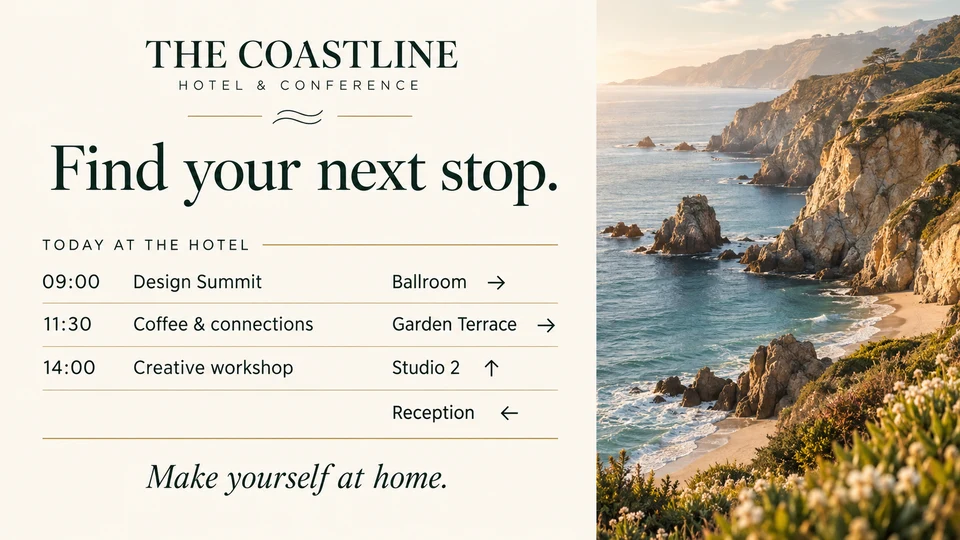
Help guests find their next stop. Publish event times, room directions, and welcome messages.
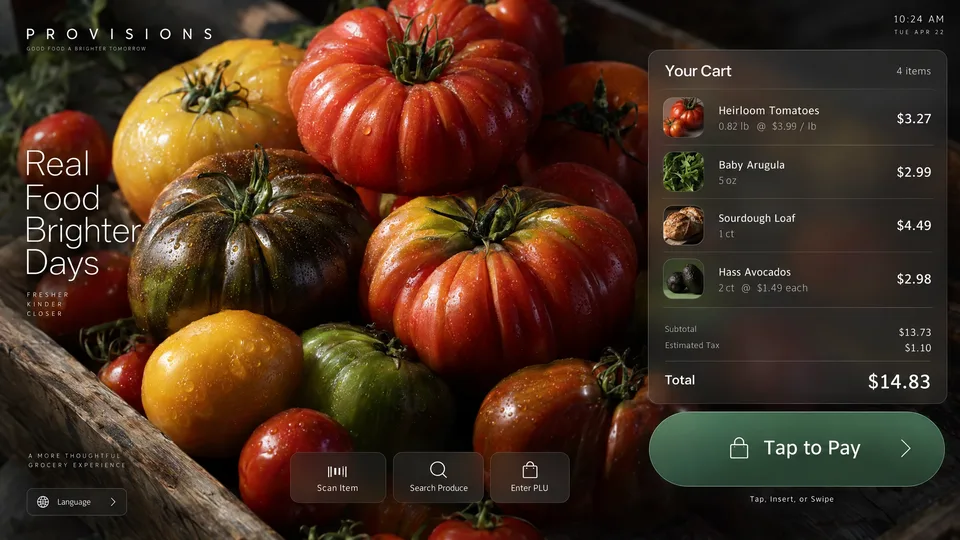
Publish a custom kiosk application. Your app defines the interaction and its integrations.
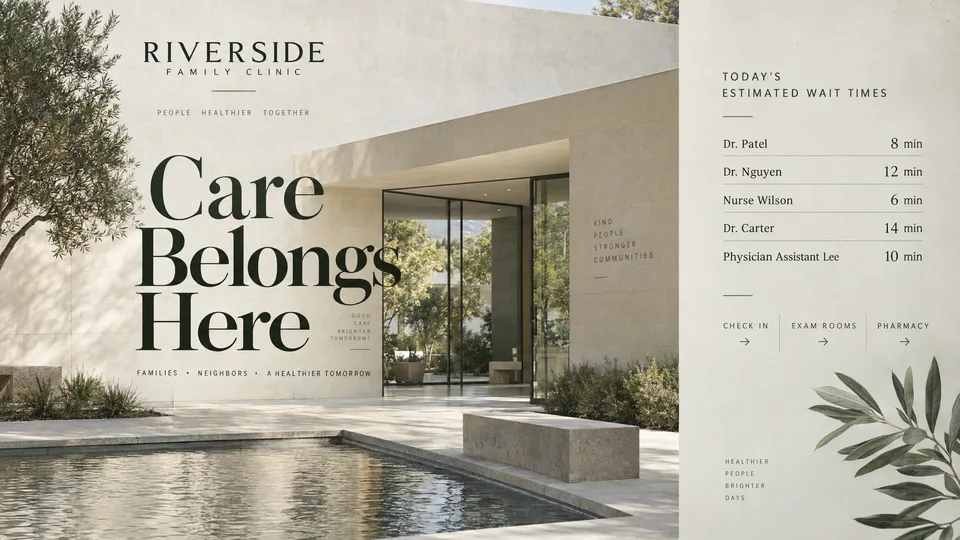
Keep visitors informed with announcements, opening hours, and helpful information.
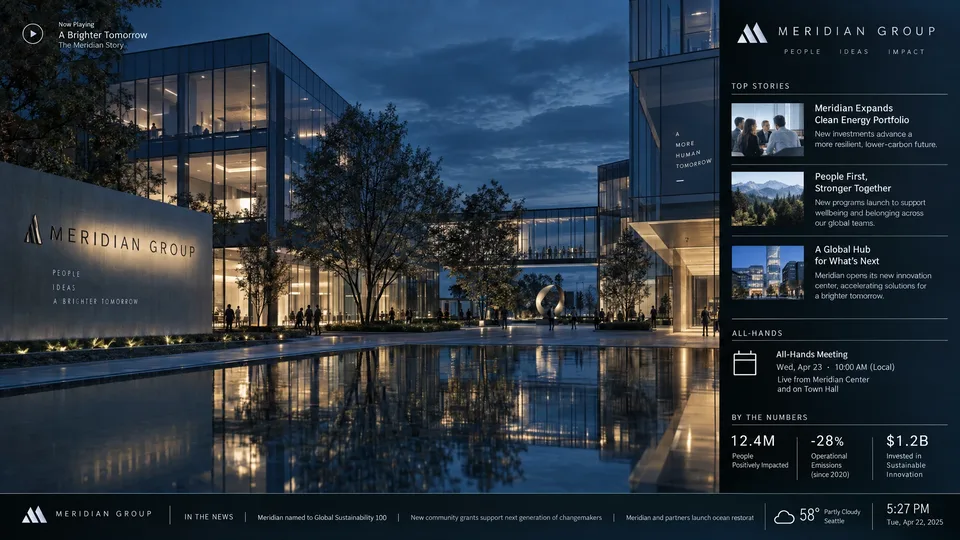
Bring team updates, video, and web content together on one display.
Example designs, not customer deployments. Interactive experiences run as applications.
Explore what your agent can publish →Built for the next update, too
Update media, playlists, and app releases. Schedule content in the screen’s timezone.
Content & schedules →Run web apps on isolated origins, retain application state, and emit events your agent can act on.
Application SDK →Request screenshots, inspect playback records, and follow events. Give the next action evidence to work with.
Agent operations →A decade of screen infrastructure behind it. screenRIG is built by a team with more than ten years of enterprise signage experience.
Meet the team →Infrastructure economics
Each Player caches downloaded media for replay. Storage and transfers are metered across your account, with no per-screen subscription.
Each device downloads its own copy. Your cost depends on what you publish, how often it changes, and how much you use.
See rates & worked examples →Included every month
Unused allowances do not roll over. Image generation is metered separately. Premium and Enterprise add support, scale, and service terms.
Launch offer: free to use within reason until 1 January 2027. See the terms.
For people and agents
Clear capabilities.
Public pricing.
Instructions you can execute.
Go straight to the source