# Goal moment card
> Canonical HTML: https://screenrig.ai/docs/cards/goal-moment/
Soccer scoreboard with a timed goal celebration in the Primetime theme.
Displays a soccer scoreboard from a supplied screenrig.game.soccer/v1 document or the host feed. Timestamped goal events trigger a synchronized celebration in the animated Primetime theme; the eight calm themes show the score without the takeover. With no match data, replaySeconds enables a repeating demonstration, and 0 disables it. Supports the canvas view.
Category: Sports. Tags: Scoreboards, Team sports, Schools and campuses.
## Previews
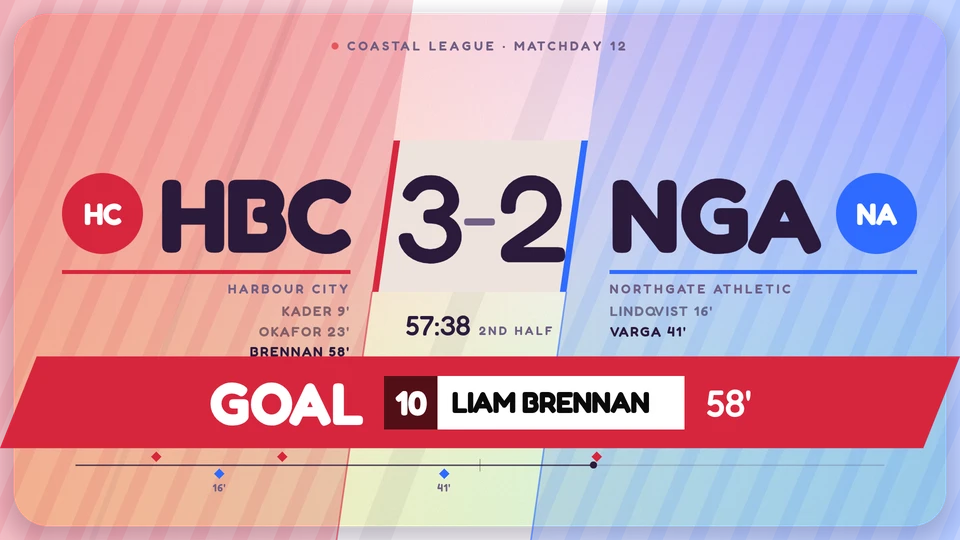
Canvas
## Views and forms
Views: canvas. Canvas forms: landscape, portrait, square, strip.
[Card views, themes and publishing](/docs/cards/). [Browse the gallery](/apps/#cards).
## Data and privacy
Feed: `screenrig.game.soccer/v1`.
Feed documents carry source attribution. The Player supplies the feed to the card.
## Properties
For theme, background, accent and position, see [Common properties](/docs/cards/#common-properties).
Set static properties in `params`. Bind `data` to a project card data key for live values; that document holds only dynamic properties. Without a data key, put the complete configuration in `params`. Nested rows describe the contents of their parent property.
### Static properties
| Name | Type | Default | Values and limits | Description |
| --- | --- | --- | --- | --- |
| `word` | string | `"GOAL"` | maxLength: `8` | |
| `replaySeconds` | number | `12` | minimum: `0`; maximum: `120` | Without match data, a demo goal every this many seconds; 0 turns the demo off. |
### Dynamic properties
| Name | Type | Default | Values and limits | Description |
| --- | --- | --- | --- | --- |
| `game` | object, null | `null` | | A screenrig.game.soccer/v1 document. A goal event with `at` (ISO instant) plays the moment. |
## Canvas example
Add this item to a playlist page’s `primitives`. [Publish the playlist and assign a screen](/docs/cards/#publish-a-card-canvas).
```json
{
"id": "goal-moment",
"primitive": "card",
"card": "goal-moment",
"major": 1,
"params": {
"theme": "neomustard"
},
"rect": {
"x": 0,
"y": 0,
"width": 1920,
"height": 1080
},
"layer": 0,
"content_fit": "fill",
"data": "example-key"
}
```
## Write live data
The canvas example binds its `data` field to `example-key`. That value is a data key: a name this canvas item chooses, not the name of the card. Give each canvas item its own key when items should show different data, or share one key when they should show the same data. Keys are scoped to the project, follow the K/V key grammar, and cannot start with `feed:`.
Create this document before showing the card, then replace it to update the screen without republishing. Writes to a key that live canvas items bind are checked against each bound card’s dynamic properties. Use the same project as the playlist.
Save the document as `card-data.json`. The CLI reads the document itself, with no wrapper:
```json
{
"game": null
}
```
```console
screenrig card-data put example-key --file card-data.json
```
Or call the API directly. The API wraps the same document in a `document` field. An agent token already names its project, so no project header is sent; if you send `ScreenRig-Project`, it must match the token’s project. Supply your API authorization through the environment; see [API authentication](/docs/authentication/).
```console
curl --request PUT "https://api.screenrig.ai/api/card-data/example-key" \
--header "Authorization: Bearer $SCREENRIG_TOKEN" \
--header "Content-Type: application/json" \
--data '{"document":{"game":null}}'
```